
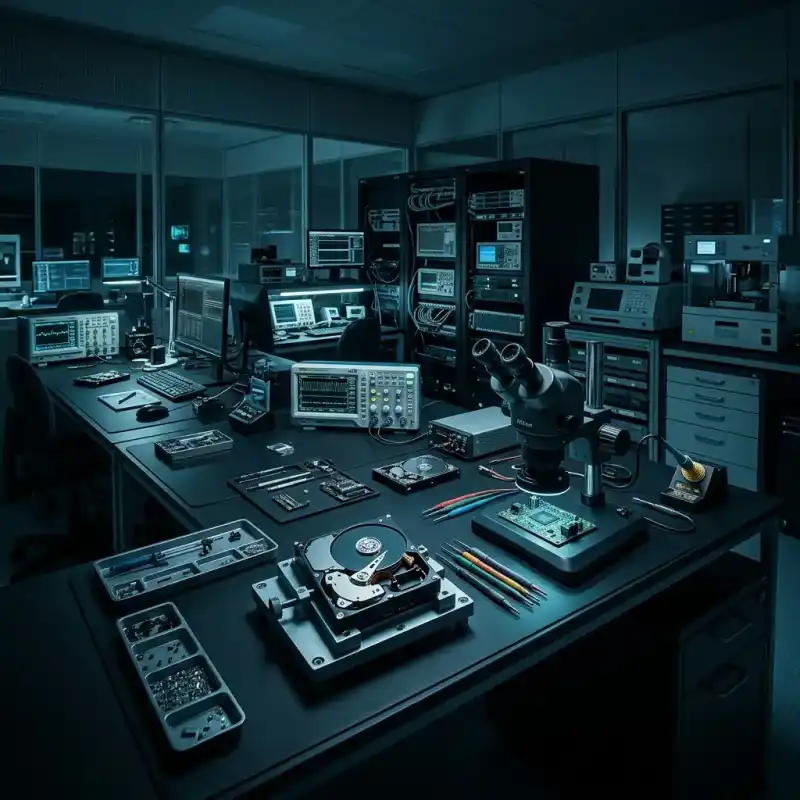
Recovering Data from a Failed Laptop
Datastrophe protects the laptop's internal storage, investigates the fault and returns only files that have been checked for practical use.
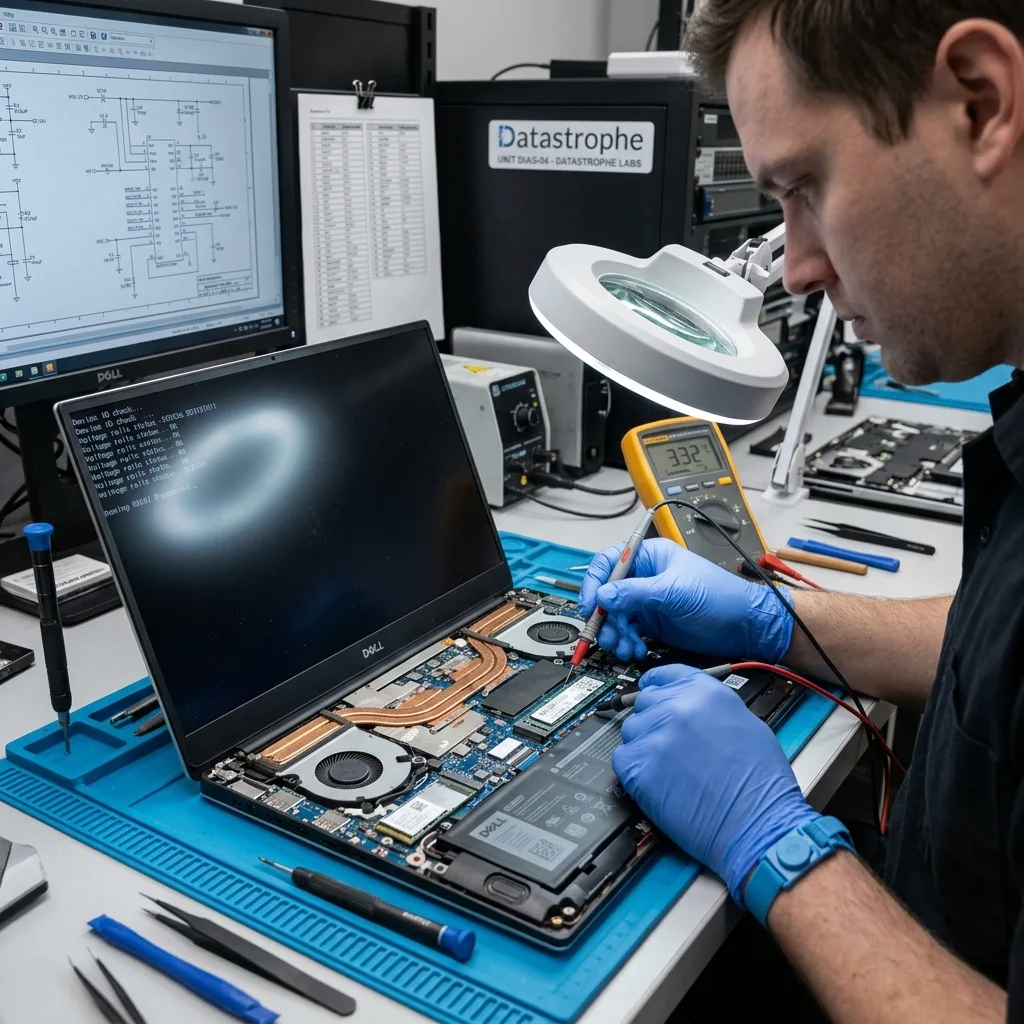
Diagnostic assessment
A black screen or boot loop does not prove data loss
The incident, internal storage and user environment are reviewed before the safest acquisition route is selected.
A laptop that does not start can have a power, display, system, account or storage fault. Recovery may concern a notebook, ultrabook or portable workstation with a SATA drive, M.2 SSD or soldered flash storage. The first review records how the computer was used, what happened before failure and which files are needed.
The internal storage is protected from unnecessary writes while hardware and logical layers are considered separately. This helps distinguish a damaged computer with readable storage from a failed drive, corrupted filesystem, inaccessible user profile or combined fault.
The goal is a separate copy of recoverable data, not a repaired laptop ready for continued use. Results can be incomplete where storage is physically destroyed, sectors have been overwritten or encryption keys are unavailable.
- Record the last normal use and first symptom
- Identify the internal storage type
- List the user folders and files required
What the initial review establishes
The review determines whether the computer, storage device, operating system, encryption or user account is blocking access. It also identifies actions that could alter recoverable information.
Purpose and technical limits
Recovery is intended to return accessible files on separate storage. It cannot restore overwritten sectors, recreate destroyed memory cells or unlock encrypted data without the required credentials.
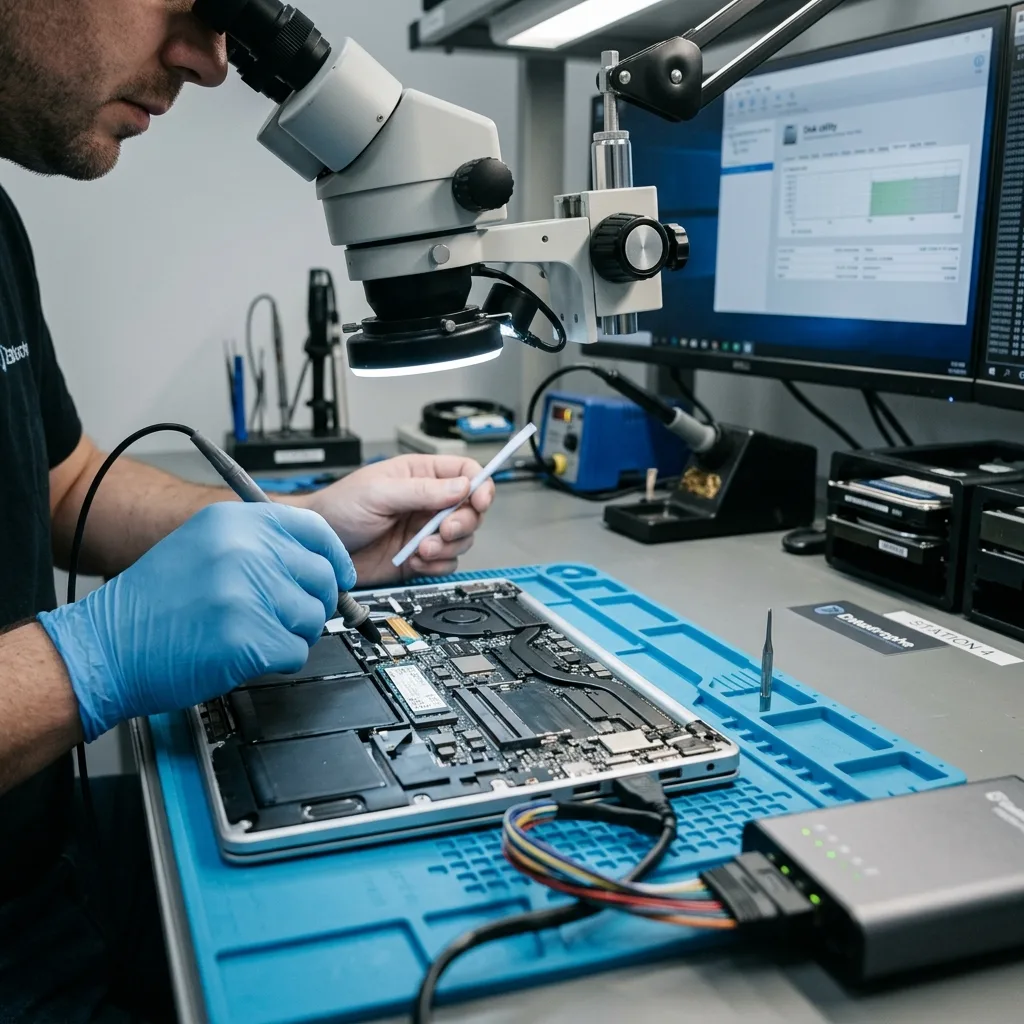
Risk control
After liquid exposure, disconnect power before corrosion spreads
Stop routine startup attempts and document the incident before the operating system or damaged hardware changes the storage further.
Failed startup, a black screen, liquid exposure, impact damage, an inaccessible account or an unrecognised SSD all require caution. One symptom may have several causes. The sequence of events and the laptop's later behaviour help establish the safest next step.
Record whether the loss followed an impact, power interruption, deletion, update, formatting or attempted reconstruction. Note every restart, repair command, drive removal and account change made afterwards.
Leaving the laptop powered can generate system writes, synchronisation activity and storage maintenance. Repeated reads may also worsen an unstable hard drive or a failing solid-state device.
After liquid exposure, disconnect external power and do not switch the laptop on to see whether it has dried. Rice does not remove moisture or conductive residue beneath shields and connectors; heaters or repeated charging can worsen corrosion or short the board. Keep the laptop closed and unpowered until the battery and storage path can be assessed safely. Note the liquid, affected side, time of exposure and whether the machine was running.
- Photograph errors and physical damage
- Avoid repeated power cycles and repairs
- Retain BitLocker and account information
Why the timeline matters
The order of impact, liquid exposure, update, deletion and repair attempts can show which structures may have changed. Observed facts provide a better basis for recovery than a presumed cause.
When to stop using the laptop
Further operation can overwrite deleted content or repeatedly access deteriorating storage. Powering down the computer and retaining its current components usually preserves more options for assessment.
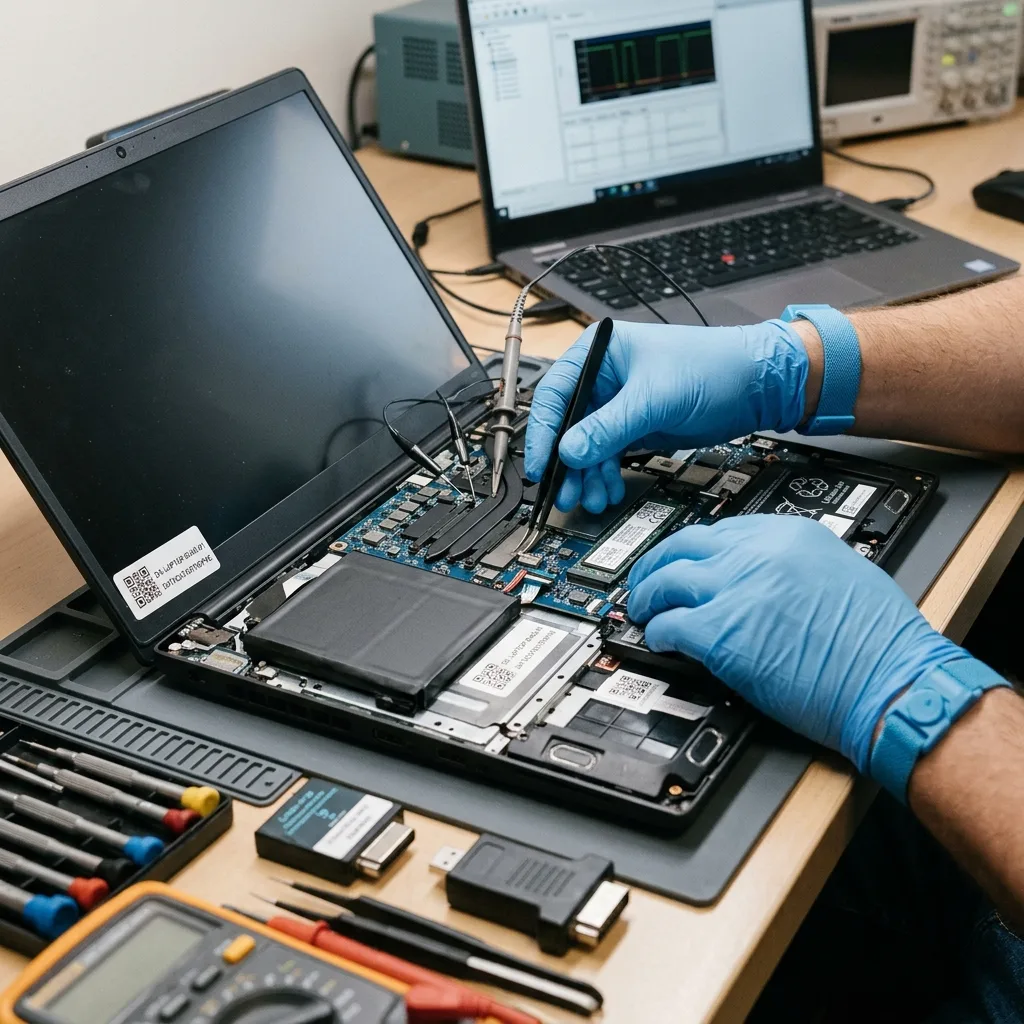
Source preservation
Image laptop storage before repairing Windows
Leave the operating system and internal components unchanged until their effect on recoverable data has been assessed.
Do not reinstall the operating system, perform a factory restore or allow repeated automatic repairs. Avoid unplanned dismantling and do not restart a liquid-damaged laptop. Each action can alter the internal storage or worsen hardware damage before the fault is understood.
System-repair tools may rewrite boot records, create new files, clear logs or replace filesystem structures. Stop exploratory scans and record which utilities or commands have already been used.
Controlled acquisition uses the safest available access to the internal storage, with analysis performed on protected images or working copies where possible. The original device is not a test platform for competing repair methods.
- Do not reinstall or factory-reset the system
- Avoid automatic disk and startup repair
- Keep removed drives and original components
How repair attempts cause loss
A repair intended to make Windows start may write over deleted content or replace useful metadata. Successful startup is therefore not a safe measure of whether the original files were preserved.
Working away from the source
Once a suitable image exists, filesystem and file-level tests can proceed without repeated access to the original storage. Hardware intervention remains limited to what is needed for stable acquisition.
Technical evidence
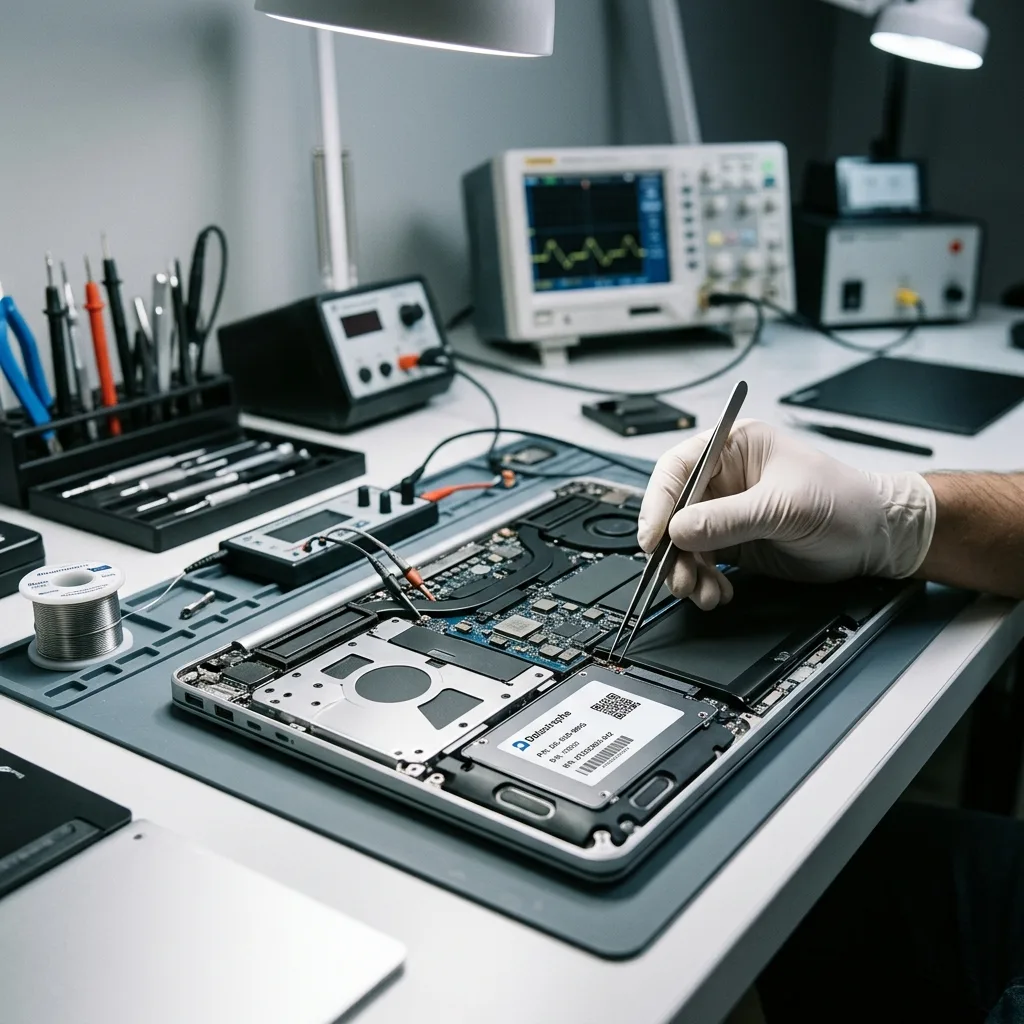
Preserve the laptop, BitLocker key and TPM context
Storage condition, encryption, filesystem records and user applications are cross-checked before files are accepted.
NVMe or SATA storage, BitLocker, NTFS, the EFI partition and user-profile records must be considered together. Recovery may need to address physical readability, disk metadata, a filesystem, encryption and application data in a defined order.
A visible folder tree is not proof that every file is complete. Conversely, a missing user interface does not mean all data is gone. Surviving indexes, logs, signatures, cloud caches and database fragments may still support a useful result.
The examination progresses from storage stability to partition and filesystem structures, then to profiles, applications and priority files. Checks at each layer reduce the risk of accepting a plausible but unusable extraction.
- Assess physical and logical storage layers
- Confirm encryption and profile context
- Open representative files before delivery
Folders are not proof of integrity
Names and paths may be reconstructed from metadata while file content remains missing or damaged. Suitable viewers and applications provide stronger evidence that recovered items can be used.
A layered examination
Readability is established first, followed by partitioning, filesystems, encryption, profiles and applications. Each finding narrows the safe and useful work at the next layer.
Laboratory method
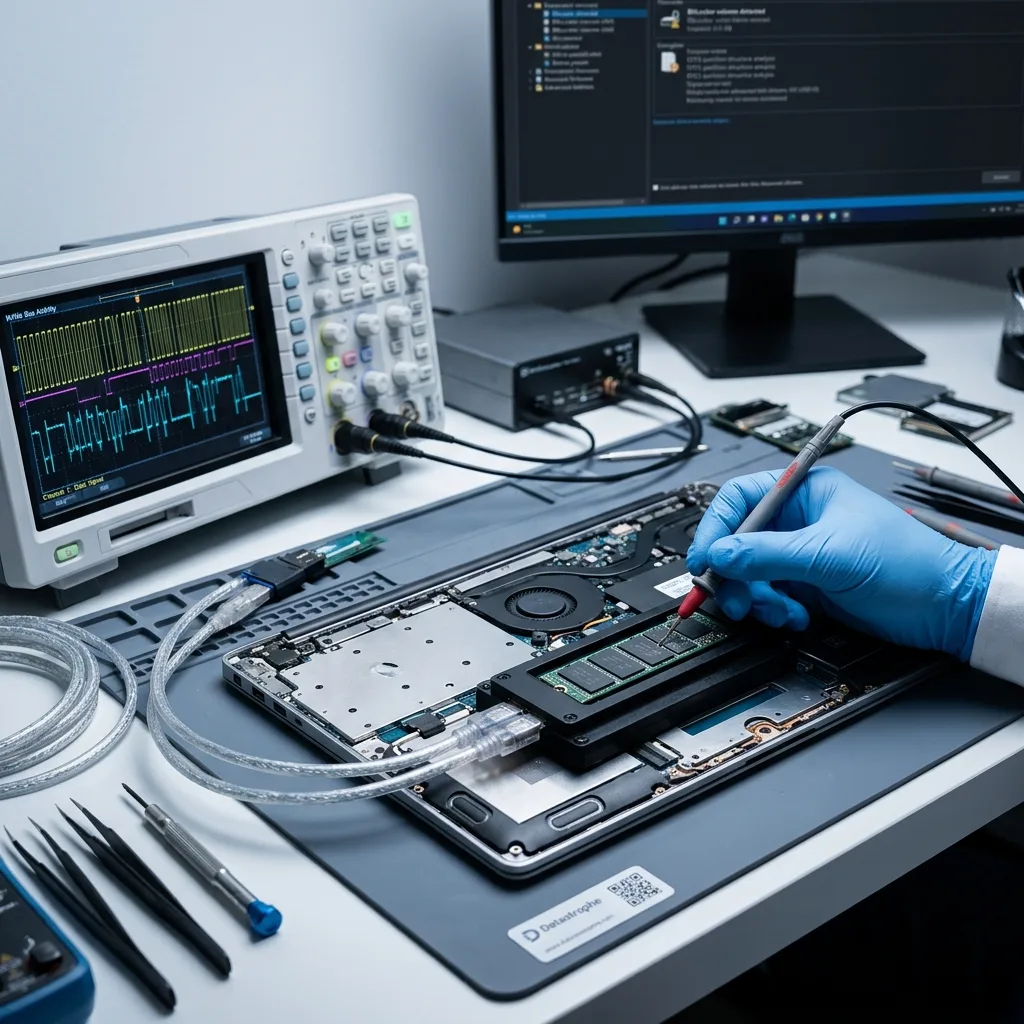
Document the storage context before removing the device
Preserve the relationship between the laptop, its storage, encryption and account state before any component is removed for acquisition.
Document the laptop's storage context before removing an internal drive or SSD. The connector, firmware mode, BitLocker or FileVault state, TPM relationship, soldered components and original operating system can all affect later access. Record labels, bay position, adaptors and account details before separating the storage from the machine.
Unstable internal storage is acquired with priority given to readable areas. In logical cases, new writes are prevented while deleted or damaged structures are examined. Where faults overlap, the least destructive acquisition step comes first.
Important documents, photographs, mail stores and project files are checked during recovery. Dates, sizes, internal structure and application behaviour help establish whether the extracted content is coherent.
- Acquire unstable storage before routine analysis
- Work from protected copies where possible
- Verify important files throughout recovery
Selecting the recovery route
The method changes according to whether the main barrier is physical instability, overwritten metadata, operating-system damage, encryption or an inaccessible user account.
Checking the result
Sample files are opened with suitable applications and compared with their expected dates and structure. Items that cannot be confirmed remain identified as partial or unverified.
File verification
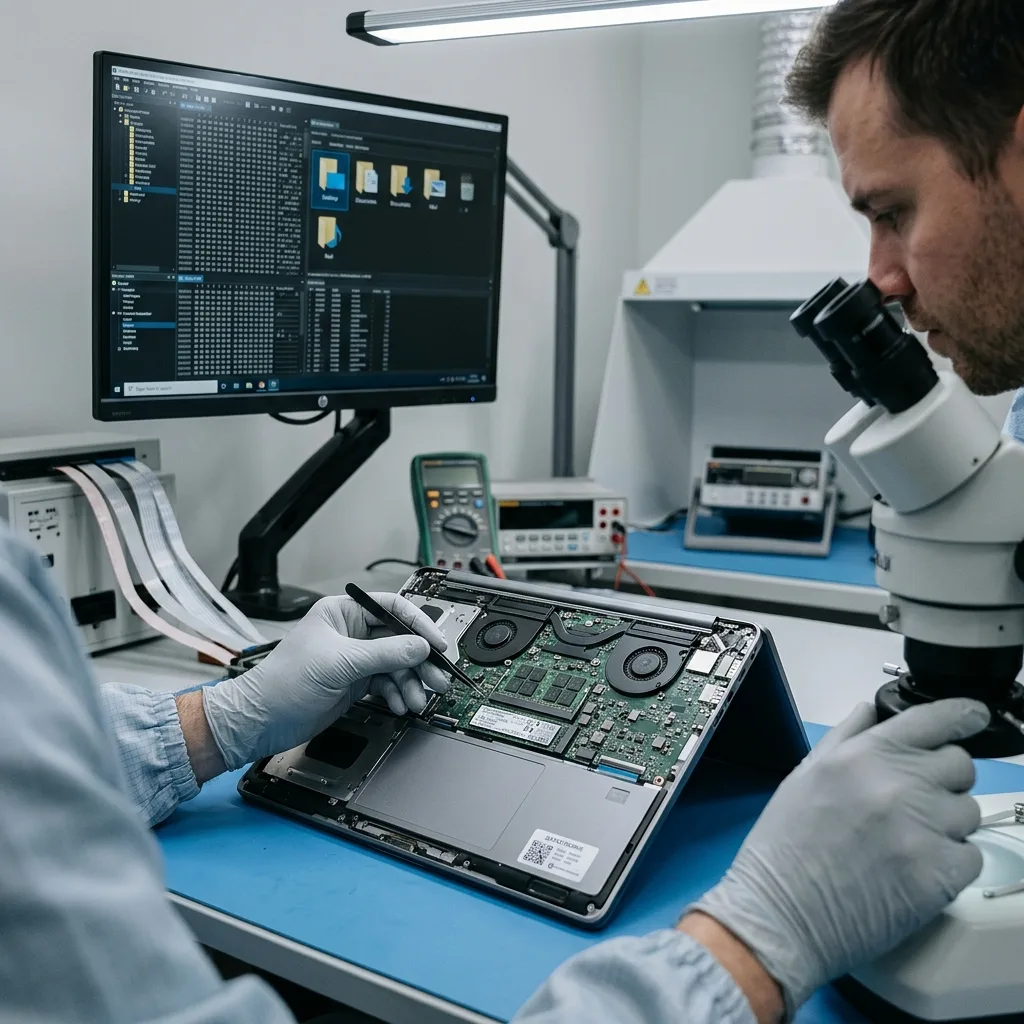
Check the photos, mail and projects that are actually missing
Name the essential folders, applications and recent work so recovery can focus on material with practical value.
Priority data often includes Desktop and Documents folders, photographs, local email, project files and incomplete synchronised folders. Listing the essential content early directs the work towards the relevant profile, application and storage ranges.
Prioritisation matters when a drive is unstable or only a small part of a high-capacity device is required. It also limits unnecessary exposure of unrelated personal and client data.
The result distinguishes files that open and behave normally from incomplete content and items found only through metadata. A filename reported by automated scanning software is not sufficient evidence of a usable file.
- List critical folders and file types
- Test files in suitable applications
- Identify incomplete content clearly
Using priorities to direct recovery
Folder names, applications and date ranges help focus acquisition and checking when time or storage stability is limited. They can also show whether a partial result would be sufficient.
What counts as a usable file
Files are classified by whether they can be opened and interpreted, are incomplete, or survive only as metadata records. These categories keep the reported outcome transparent.
Secure handover
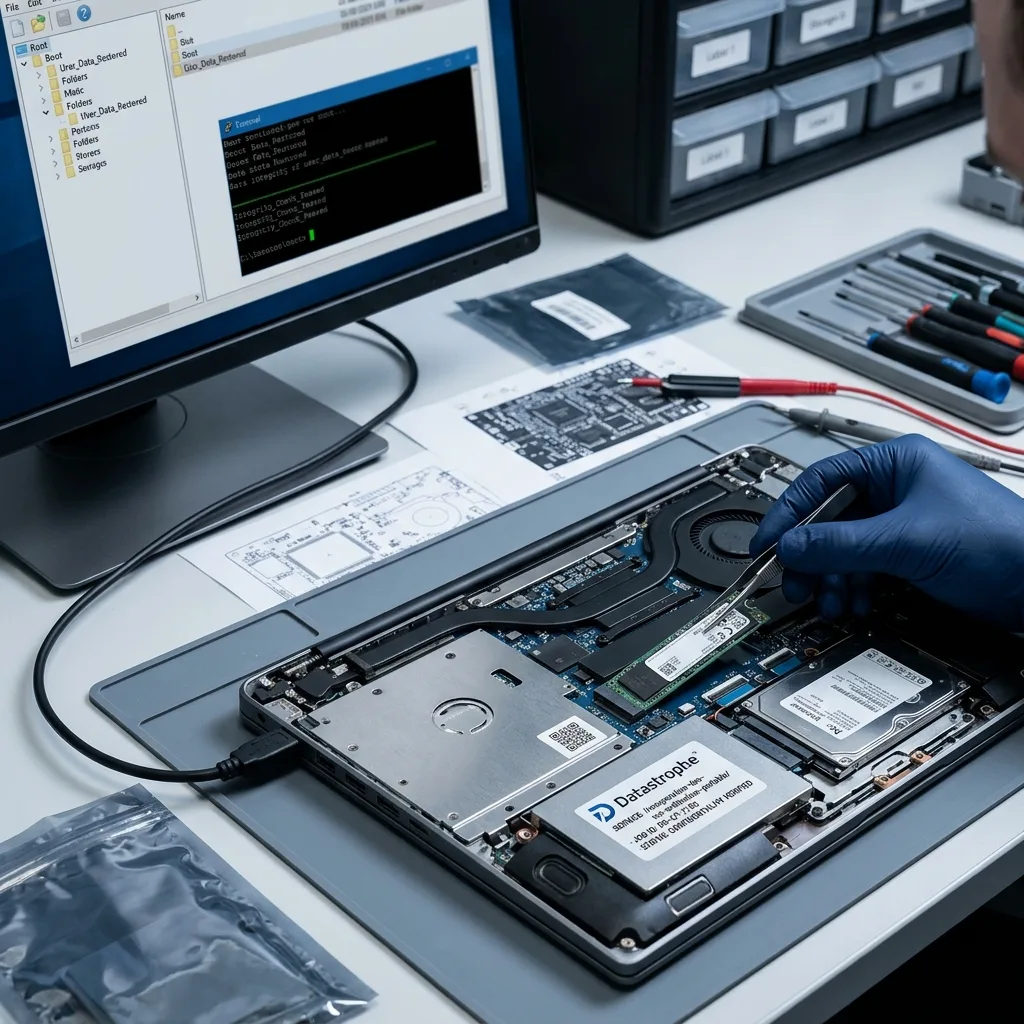
Return data without putting the damaged laptop back into service
Access stays within the agreed scope, and returned content is separated clearly from the source and laboratory working data.
A laptop commonly contains account history, personal information, client documents and application data beyond the requested files. Examination should remain within the authorised scope and limit access to what is technically necessary.
Recovered material is returned on suitable destination storage or in another agreed format. A targeted folder set, mail export or partial reconstruction is labelled so it cannot be mistaken for a complete copy of the original computer.
Unreadable sectors, failed components, inaccessible encryption and inconsistent databases are reported plainly. The returned data is not described as complete when those limitations affect relevant files.
- Restrict examination to required content
- Use suitable destination storage
- Carry known limitations into the handover
Preparing the return copy
Recovered folders and exports are organised according to the agreed priorities. Any conversion or partial reconstruction is described in terms the recipient can use.
Reporting technical constraints
Damaged files, missing structures, unreadable storage and unavailable credentials are identified in the outcome. This keeps decisions grounded in the evidence that remains.
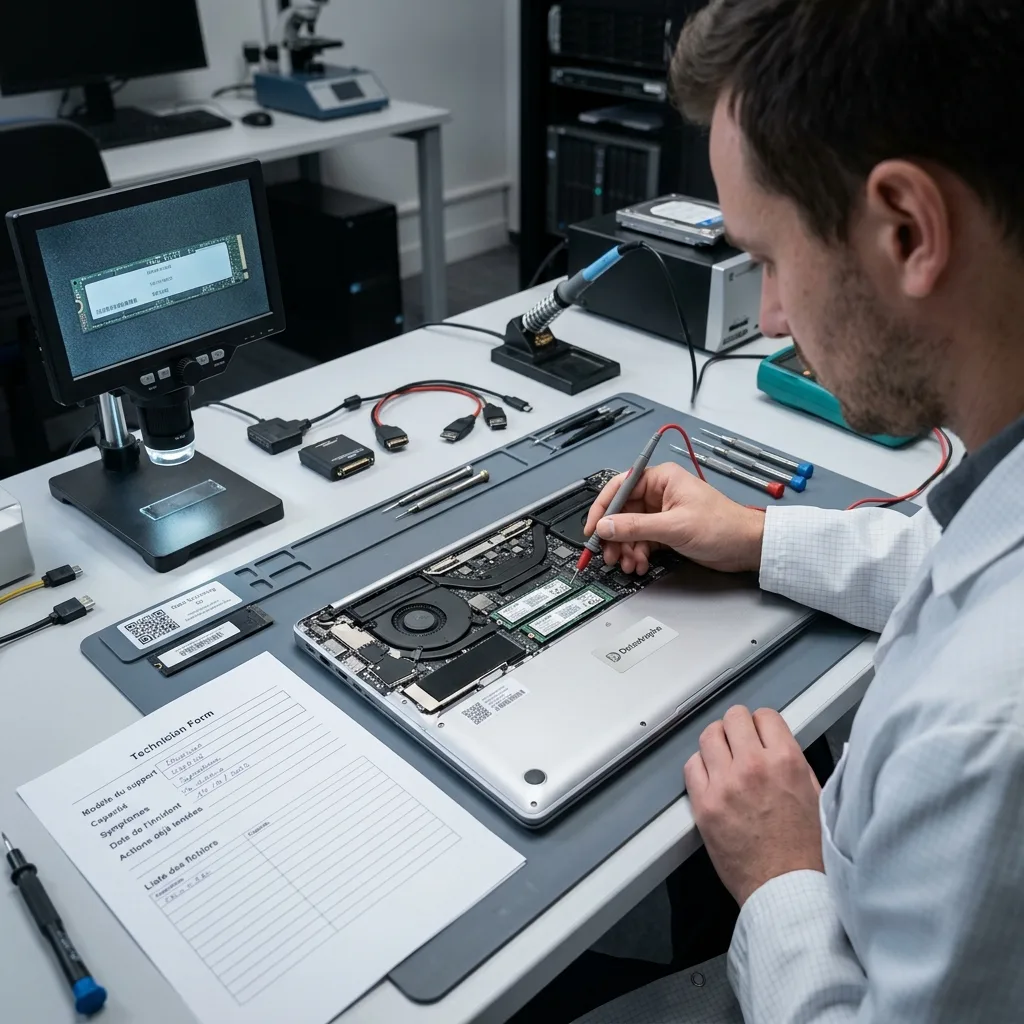
Case preparation
Provide the laptop, charger, keys and priority folders
Accurate hardware details, incident history, encryption information and priority files support a focused initial review.
Provide the laptop model, internal-drive details, capacity, symptoms, incident date, previous actions and priority files. Photographs of errors, liquid marks or impact damage can clarify the device's starting condition.
Retain the power adaptor, storage enclosure, cables, removed drive, replacement components and any partial backup. A component that appears secondary may help confirm the fault history or original configuration.
A concise summary should separate observations from assumptions. Explain what happened first, what was tried later, which files are essential and whether a result limited to particular folders or dates would still be useful.
For a New Zealand case travelling between regions or islands, use a rigid box with the laptop immobilised and the charger wrapped separately. If an internal drive has already been removed, label its original position and protect it from static. Retain tracking, and send BitLocker keys or account credentials through the agreed secure channel rather than inside the package. Do not send a loose computer in a courier satchel.
- Provide the laptop and storage models
- List essential folders and applications
- Describe repairs, reinstalls and drive tests
Items to keep with the case
Keep the original internal storage and any parts removed after the incident. Relevant adaptors, recovery keys and backups may also support a more accurate assessment.
A useful case summary
Record events in order and define an acceptable partial result without guessing at the cause. Clear facts make it easier to choose a proportionate technical route.
FAQ
Frequently asked questions
What should I do first when a laptop stops working?
Stop repeated startup and repair attempts, especially after liquid or impact damage. Record the symptoms, keep the original components together and identify the user folders and files that matter most.
Can every file be recovered from a failed laptop?
No. The result depends on storage condition, later writes, surviving metadata, encryption and credentials. Only content supported by readable data and practical file checks should be reported as usable.
Why do laptop recovery priorities matter?
Desktop files, documents, photographs, email and project folders may sit in different profiles or applications. Priorities direct acquisition and allow useful content to be checked sooner.
Can the original internal storage be used again?
Data recovery does not certify a failed drive or soldered storage for continued service. Any device associated with data loss or unstable behaviour should not be assumed reliable because some files were recovered.
How are partial laptop recovery results reported?
The outcome separates verified files, incomplete content and metadata-only records. Unreadable areas, destroyed structures, application corruption and inaccessible encryption are stated as limitations.
Media
Other expertise
- Data Recovery for Failed Internal Hard Drives Professional recovery from internal hard drives affected by mechanical damage, unreadable sectors, lost partitions, formatting or firmware faults.
- Recover Data From a Damaged External Hard Drive Recovery of files from external hard drives affected by impact, damaged USB connections, missing partitions, deletion or unstable media.
- Recovering Files from Failed SSD and NVMe Devices Controlled recovery from inaccessible SSD and NVMe devices affected by controller, NAND, firmware, power, encryption or volume faults.
- Recover Data From a Damaged or Unreadable USB Drive Professional file recovery from USB drives with broken plugs, failing NAND, corrupted structures, missing folders or recognition faults.
- Recover Files From a Failed or Formatted Memory Card Recovery of photos, video and other files from SD, microSD and CompactFlash cards affected by formatting, corruption, read errors or flash faults.
- Recovering Data from Mac Computers and Apple Storage Controlled recovery of usable files from Mac computers, APFS volumes, FileVault storage, Apple SSDs and separated Fusion Drives.
- Recovering Data from a Tablet or iPad Recover local photos, documents and application data from tablets with startup, screen, storage, access or synchronisation faults.
- Data Recovery for VMDK, VHDX and Other Virtual Disks Data recovery from VMDK, VHDX, VHD and QCOW2 files, including damaged snapshots, VMFS datastores, databases and virtual machines.
- Recovering Data from RAID, NAS and Storage Arrays Recovery of data from RAID, NAS and server arrays affected by disk faults, unavailable controllers, degraded volumes or unsuccessful rebuilds.
- Recovering Critical Data from Business Servers Recovery of usable data from failed servers, RAID arrays, SQL databases, shared storage, virtual machines and damaged volumes.
- CCTV Footage Recovery From NVR, DVR and XVR Systems Recovery of security camera footage from NVR, DVR and XVR systems affected by damaged indexes, storage faults, unreadable exports or timestamp errors.
- Inside an ISO 5 Clean Room for Hard Drive Recovery How an ISO 5 Class 100 clean room supports hard drive recovery by controlling dust around exposed heads, platters and internal parts.
 Data Recovery for Failed Internal Hard Drives
  Recovering Files from Failed SSD and NVMe Devices
  Recover Data From a Damaged or Unreadable USB Drive
  Recover Files From a Failed or Formatted Memory Card
  Recovering Data from Mac Computers and Apple Storage
  Recovering Data from a Tablet or iPad
  Data Recovery for VMDK, VHDX and Other Virtual Disks
  Recovering Data from RAID, NAS and Storage Arrays
  Recovering Critical Data from Business Servers
  CCTV Footage Recovery From NVR, DVR and XVR Systems
  Inside an ISO 5 Clean Room for Hard Drive Recovery
 Diagnostic assessment
Unsure about a storage device or fault?
Datastrophe assesses the risk before any recovery attempt and points you towards the safest next step.