

Diagnostic assessment
A laptop SSD rarely fails like a hard drive
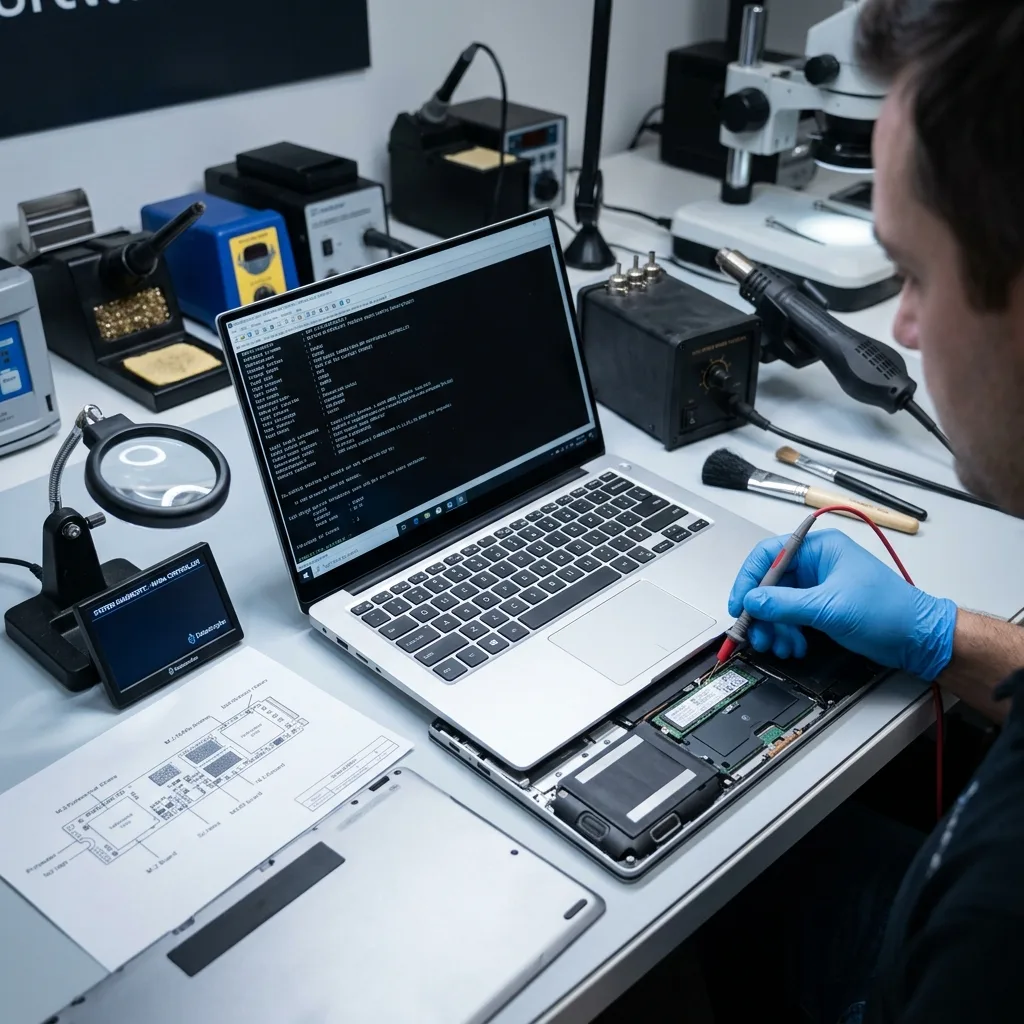
A laptop SSD doesn't produce the classic symptoms of a mechanical drive. Keep the original computer, power history and encryption details with the SSD so controller and host dependencies can be reviewed. It doesn't click or scrape, and it may not slow down progressively. The laptop might merely refuse to start, display a recovery screen, request a repair or stop showing the volume.
That silence can give the false impression of a straightforward software issue. In reality, the SSD may be locked by its controller or firmware, affected by NAND failure or volume corruption, or protected by encryption that prevents access to the data.
Mobility adds another layer. A drop, pressure inside a bag, heat, an erratic battery, prolonged sleep or a power interruption during an update can generate overlapping symptoms. Both the storage device and laptop need to be reviewed, not just the displayed message.
SSD data recovery describes the service procedure. The particular risk here is a heavily used system SSD that is commonly encrypted and dependent on a defined laptop environment.
A laptop also concentrates many uses on one device. The same SSD may hold the operating system, local email, synchronised folders, application caches, active projects and personal files. Frequent writes make it harder to establish the precise state after an incident.
Laptop failure must also be distinguished from SSD failure. A black screen, unresponsive keyboard or failed motherboard may prevent access without destroying the storage device. Conversely, a working laptop can conceal an SSD that responds poorly and disappears intermittently.

Diagnostic assessment
Heat, sleep and power change the risk
A laptop experiences heat, sleep cycles, movement and rapid changes between battery and mains power. These conditions don't automatically destroy an SSD, but they generate more opportunities for an interrupted write or internal disconnection.
System updates are a recurring example. If an update, restart or restore is interrupted, the volume metadata may become inconsistent. The SSD can remain physically healthy while the laptop refuses to boot.
Heat may also worsen an SSD that is already fragile. Using a closed laptop, placing it on a hot surface or restricting ventilation can lead to intermittent errors. A storage device that appears and then disappears should be treated cautiously.
Avoid restarting repeatedly to see whether it recovers. Each boot can trigger system writes, logs, repairs or synchronisation. If the files matter, the goal is no longer to start the laptop but to retain its data.
The battery must be considered too. A laptop that loses power during a write can be left with an inconsistent volume. If the charger or power system is suspect, further testing may cause another interruption at the worst possible time.
Diagnostic assessment
TRIM and encryption can limit the options
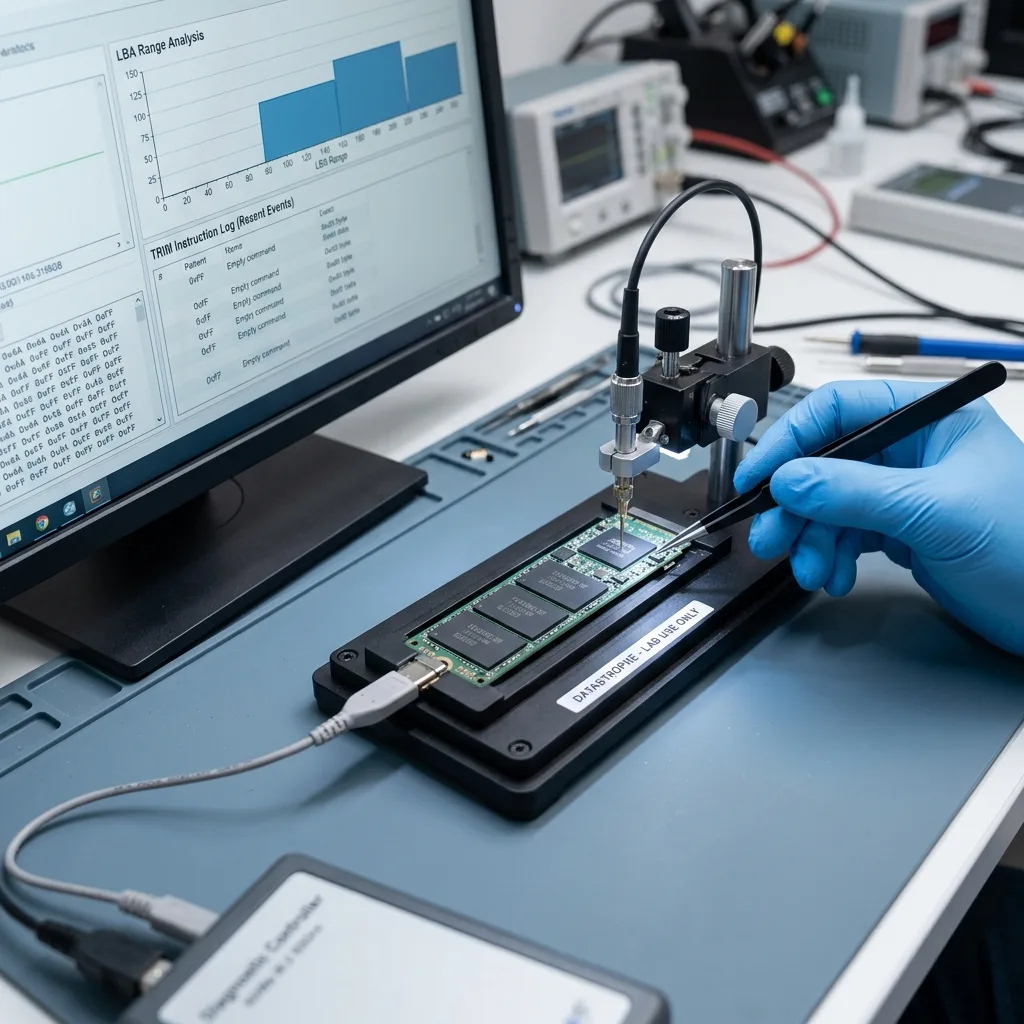
Modern SSDs use TRIM and internal wear-management mechanisms. After deletion, formatting or reinstallation, some blocks may promptly become less usable. Activity after the incident therefore matters greatly.
Encryption creates another constraint. A laptop SSD may be protected by BitLocker, a password, a recovery key or a company policy. Without the required credentials, data that remain present can still be unusable.
Don't alter security settings, reset the account or erase the computer before a diagnostic assessment. An action intended to restore service can make recovery harder if it changes access to the volume.
NVMe data recovery describes these invisible layers. In a laptop, they combine with the battery, BIOS, controller and in some cases an organisation's device-management policies.
In a business, the SSD may also depend on an account, domain, profile or security platform. Keep inventory details and authorised access information. Without that context, an assessment may mistake a locked volume for a damaged one.
Locate recovery keys prior to any invasive work. They may be held in a Microsoft account, administration console, asset record or internal procedure. Finding them early avoids needless technical interventions on a volume that is merely encrypted.
Diagnostic assessment
Actions to avoid after failure
After an incident, avoid reinstallation, formatting, automatic repairs, repeated scans and copying new files to the same SSD. These operations may replace metadata that could still assist recovery.
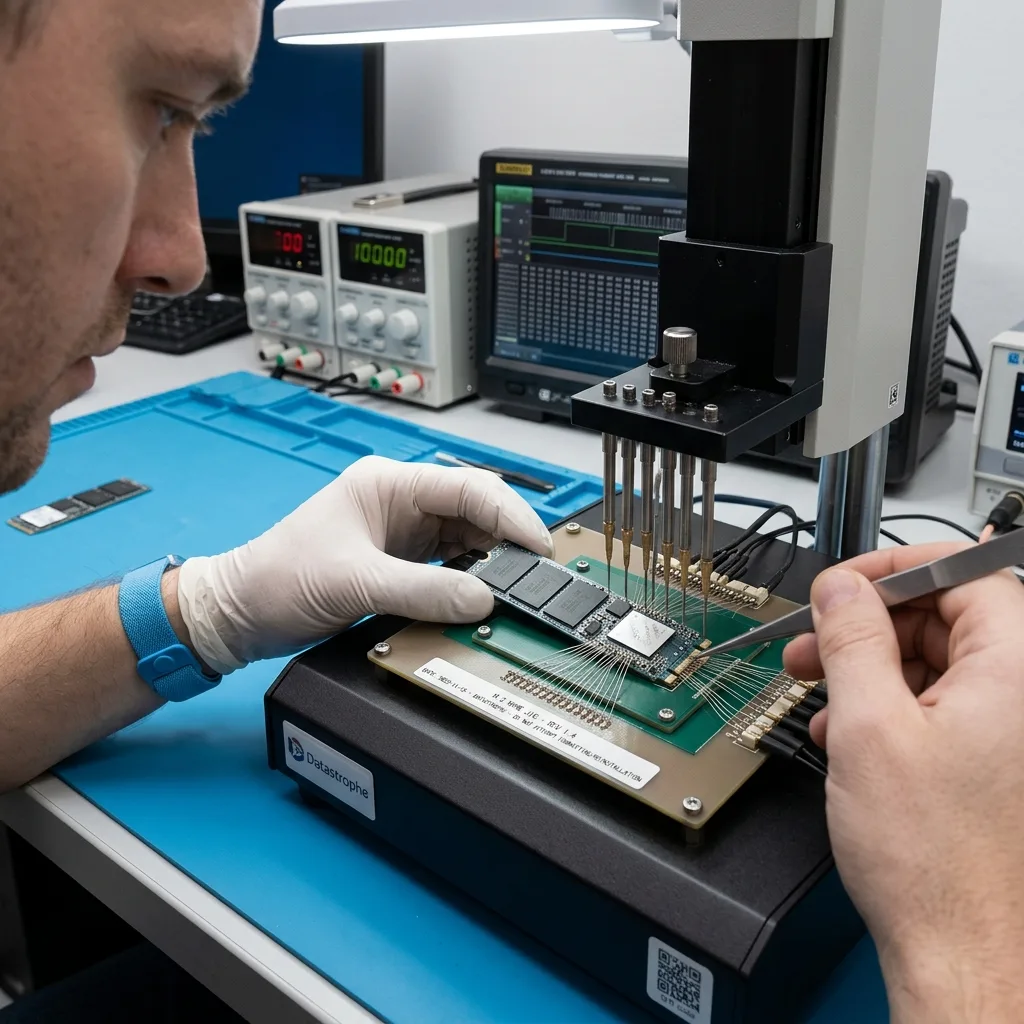
Don't remove the SSD without first understanding the laptop model. Some machines use a standard SSD, while others have a proprietary format, soldered storage or a firmware-dependent configuration. Poorly prepared removal can waste time or damage the hardware.
Record the laptop model, displayed messages, last action, presence of encryption, available access and priority files. This timeline helps Datastrophe choose an appropriate diagnostic assessment.
If a backup exists, confirm it before restoring. An old, incomplete or encrypted backup with no key may still omit crucial data. Restoring too soon to the original computer can destroy the final valuable traces.
Don't assume synchronised folders are automatically safe. Deletion, corruption or an incorrect state can propagate to the cloud. Confirm available versions before resuming work on the laptop.
If the laptop belongs to an organisation, avoid urgently re-enrolling, resetting or replacing it prior to the missing data have been confirmed. Some management policies erase the drive or reapply a profile, limiting the available recovery options.
Diagnostic assessment
How to retain the laptop and its priority data
The complete laptop may be practical, together with its charger, account, recovery key, SSD, adaptors and usage history. Even if the storage device appears to be at fault, the original environment can provide clues or allow it to be unlocked.
Prioritise the expected data. An accounts folder, client project, local database or unique photographs require separate treatment from temporary files. Targeted extraction may be preferable if the SSD responds intermittently.
Don't assume the affected SSD is trustworthy after recovery. The assessment needs to establish whether the failure arose from an isolated incident, heat, a corrupted volume, encryption or a device approaching the end of its dependable life.
A failed laptop SSD calls for a measured technique: retain it, document the incident, limit writes and provide the available access details. This offers the best chance of preventing a silent failure from becoming a permanent loss.
Once the case is complete, decide whether the SSD and laptop can still be used. Successful recovery isn't proof that the storage device is trustworthy. Replacing the SSD, reviewing backups and testing a restore helps prevent the same situation from recurring.
Diagnostic assessment
Primary Technical References And Limits
Reference scope — SSD failure data recovery guide: For laptop SSD failure data recovery guide, the primary references used are europe.kioxia.com. Physical evidence — SSD failure data recovery guide: They define the relevant preservation, storage or validation concepts, but they cannot establish the exact physical condition, controller state, key availability or business consistency of the device received. Controller evidence — SSD failure data recovery guide: Those points require measurements on the original set and verification on copies.
Diagnostic assessment
Arrange A Controlled Assessment
Complete set — SSD failure data recovery guide: For a technical assessment of laptop SSD failure data recovery guide, provide the complete device or storage set, its associated power and interface parts, the symptom timeline and the priority records. Incident history — SSD failure data recovery guide: Keep member order, labels and authorised credentials separate from the parcel paperwork; do not restart the source merely to obtain a new screenshot.
Laboratory responsibility — SSD failure data recovery guide: Datastrophe performs the diagnosis, integrity checks and recovery directly in its own laboratory with its own team. Free assessment — SSD failure data recovery guide: Diagnosis and the quote are free. Transport boundary — SSD failure data recovery guide: Return courier transport is included; the carrier moves only the sealed parcel and neither accesses nor processes its data.
Controlled list — SSD failure data recovery guide: Before any payment, the client receives the proposed price and a checked list. Verification classes — SSD failure data recovery guide: Each item is classified, in order, as recoverable_verified, partial, detected_unverified or unrecoverable. Payment trigger — SSD failure data recovery guide: Only recoverable_verified items whose contents were checked and found usable are presented as recoverable. No-result rule — SSD failure data recovery guide: Payment is due only after the client accepts both the list and the price.
No-result rule — SSD failure data recovery guide: If no usable data is verified, recovery fails, or the client declines the list or price, no standard fee is payable. Rare-part exception — SSD failure data recovery guide: The only exception is a rare, costly and non-refundable part, which may be ordered only after a separate, explicit and priced proposal has been accepted.