
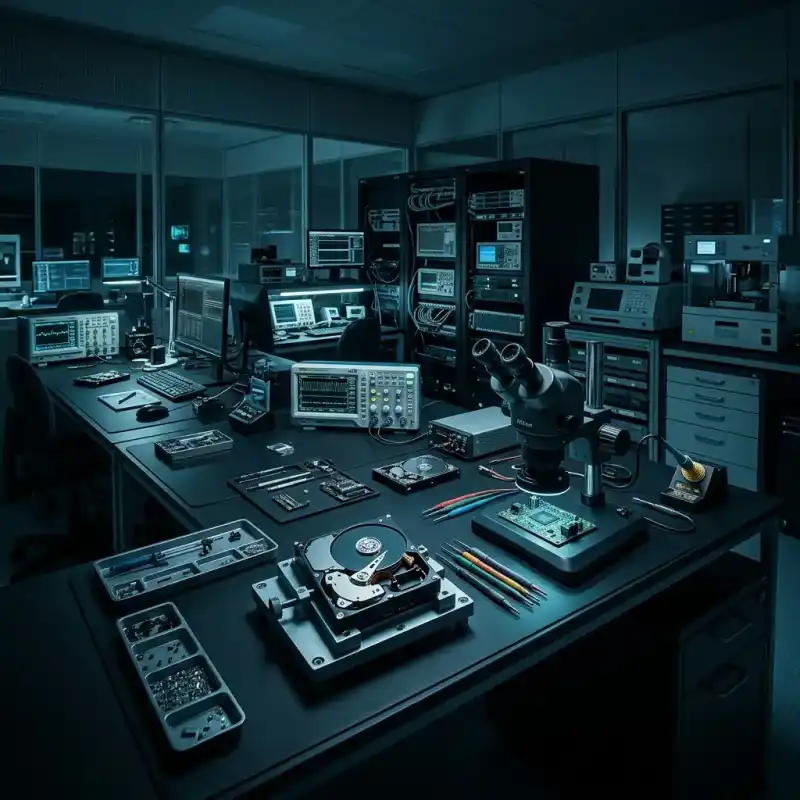
Laptop File Recovery After Hardware or System Failure
Datastrophe protects the laptop and its internal storage, investigates the failure and returns recovered files that pass practical checks.
Fault assessment
Separate the laptop fault from the data fault
First establish whether the barrier is the laptop hardware, internal storage, operating system, user account or encryption.
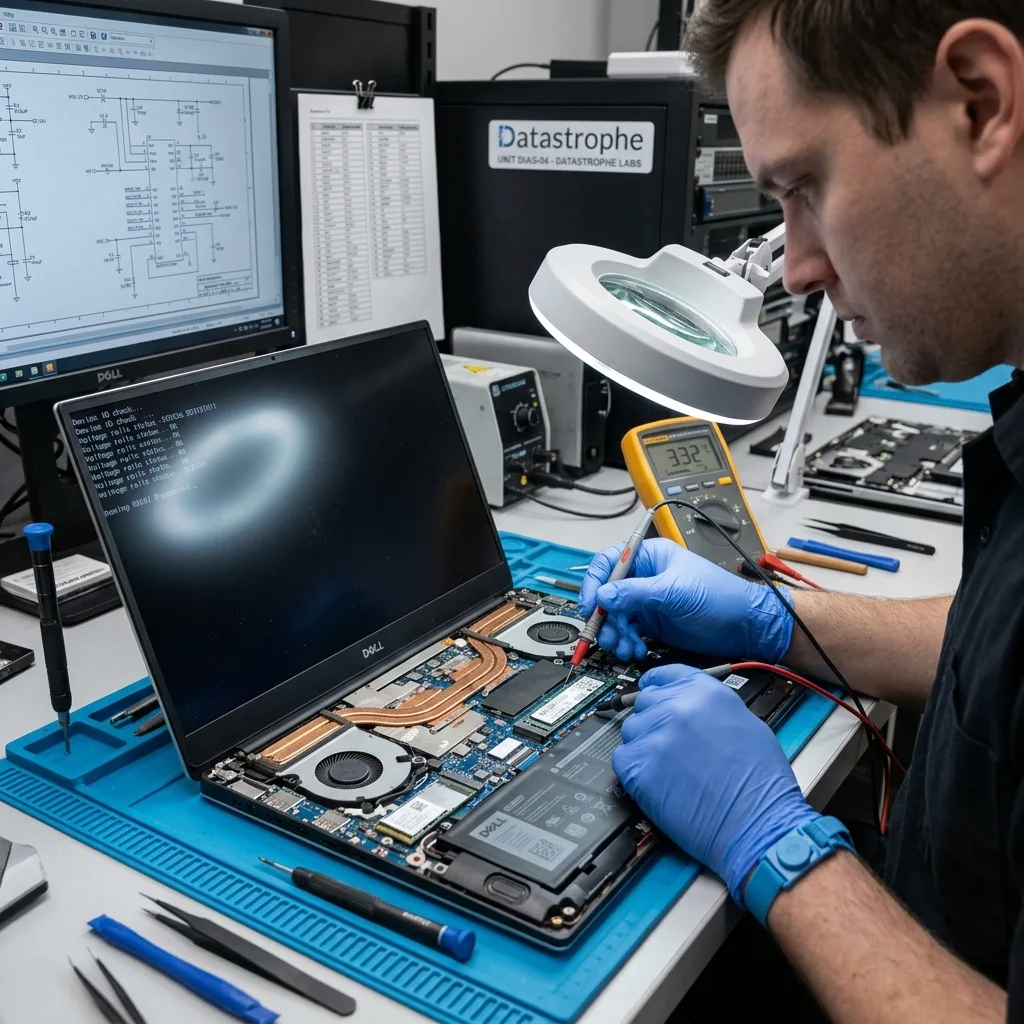
A laptop that will not start does not, by itself, show whether the required files are damaged. Power circuitry, the display, liquid ingress, impact damage, Windows or Linux, the internal drive and encryption can each block access. Cases may involve ultrabooks, portable workstations, M.2 SSDs, SATA drives or soldered storage. The diagnostic assessment starts with the incident sequence, normal use of the computer and the files that matter.
In the data recovery laboratory, the laptop and internal storage are kept in their received state while safe access options are reviewed. Writes, automatic repairs and unnecessary starts are avoided. This approach helps distinguish a computer-level fault from logical corruption, a failing drive or a combination of problems.
The aim is to copy recoverable data to separate, reliable storage, not to certify the damaged laptop for continued use. Overwritten sectors, failed flash memory and encrypted content without a working key or credential remain real limits.
- Describe the incident and current behaviour
- Identify the internal storage configuration
- List essential folders and file types
What the initial review establishes
The laboratory records the laptop model, storage arrangement, symptoms and prior work before selecting an access method. Hardware, storage, file-system and user-data layers are considered separately so the first action is tied to evidence.
What recovery is intended to deliver
Recovery is directed at a separate copy of usable files. It does not make the original computer dependable again, and it cannot recreate overwritten content or decrypt data when the required access material is unavailable.
Risk indicators
Recognise symptoms that increase the risk
Note the exact startup, display, power and drive behaviour, then stop repeated attempts when access becomes unreliable.
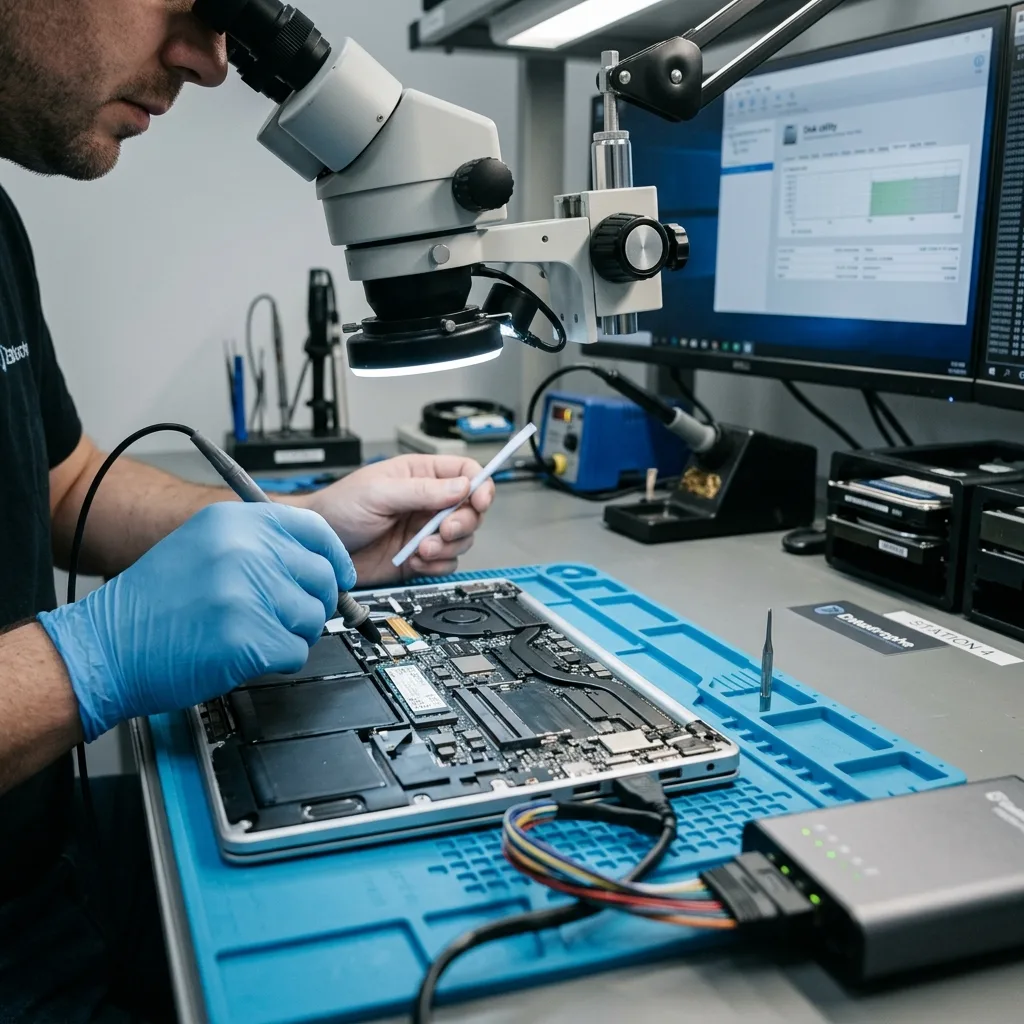
Failed startup, a black screen, liquid or impact damage, an inaccessible session and a missing internal SSD all require a controlled response. No single symptom proves the cause. A drive that clicks, slows down, disconnects or is recognised only intermittently should be treated as unstable.
Record what happened before and after the failure. A drop, power interruption, deletion, format, update or recovery attempt leaves a different technical trail. Later actions may also change file-system metadata, account state or blocks that were previously recoverable.
Keeping the laptop powered can generate logs, updates, caches and synchronisation writes. Repeated reads can also place more stress on a failing hard drive or unstable connection. Once the behaviour is documented, stop testing instead of trying another restart.
- Photograph messages and visible damage
- Record every restart, repair and update attempt
- Keep BitLocker and account details available
Why the event sequence matters
Impact, liquid, deletion and operating-system work produce different risks. A clear timeline separates the original fault from later changes and helps explain conflicting partition, account or file-system evidence.
Stop when the device is unstable
Background activity can write to the internal drive even when no file is deliberately saved. Power cycling can also worsen electrical damage or a marginal drive, so further tests should wait until a controlled plan is available.
Preservation
Image the storage before repairing or reinstalling Windows
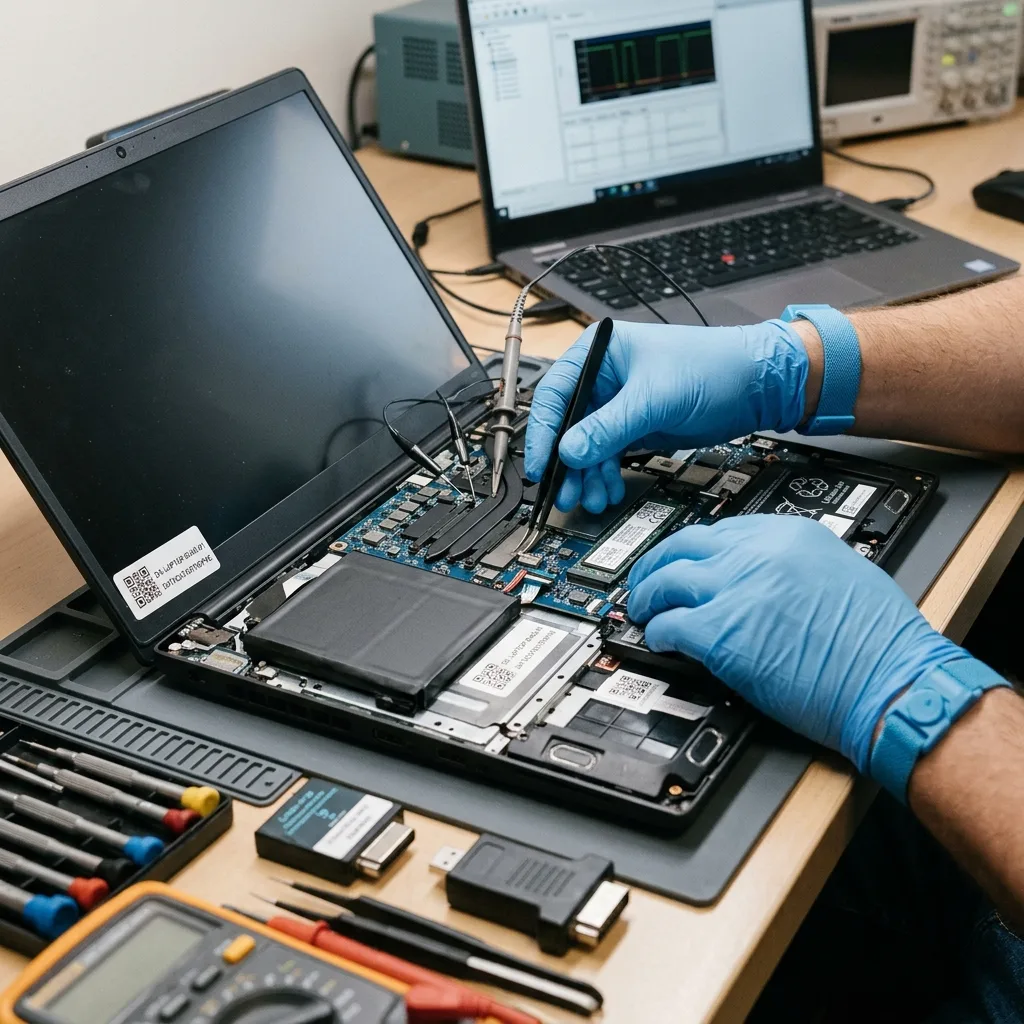
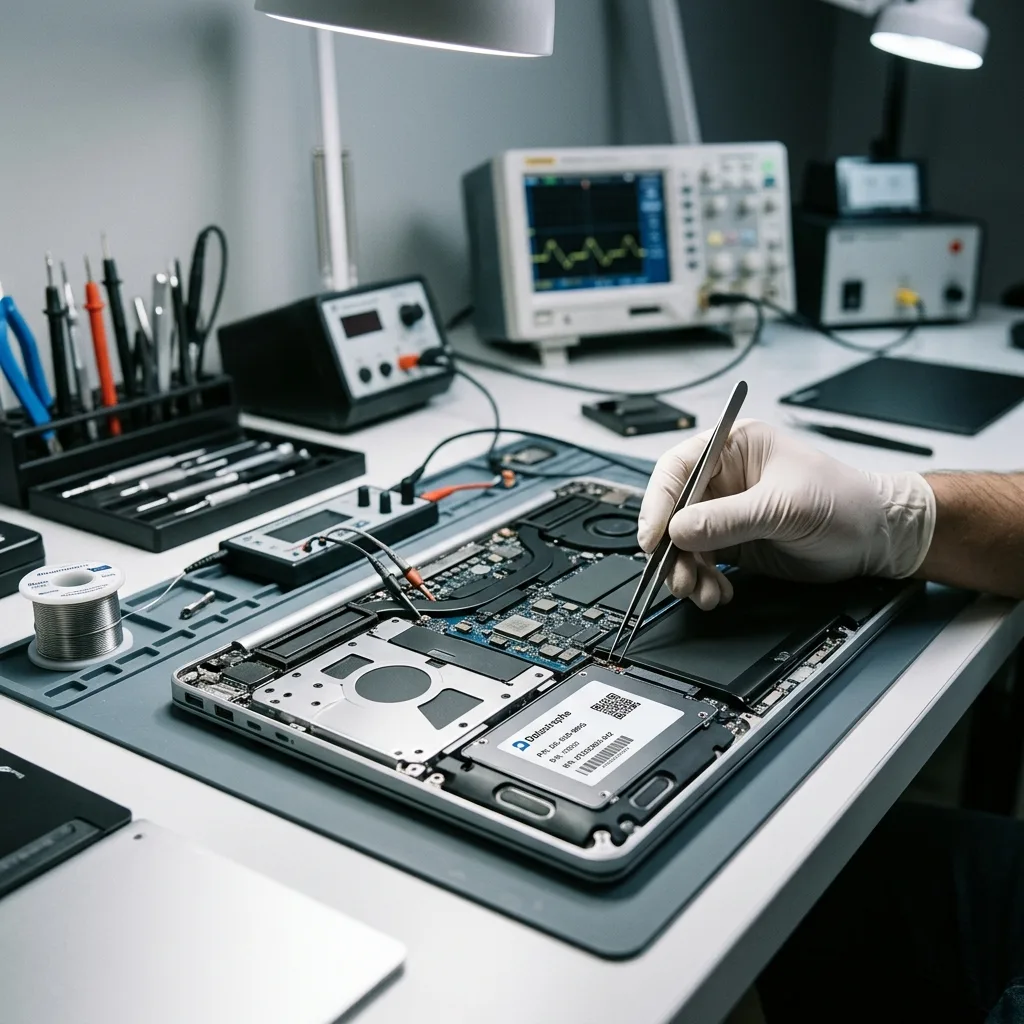
Preserve or image the internal storage before Windows repair, reinstallation, reset or another power cycle can change it.
Do not reinstall the operating system, run a factory restore, approve automatic repair or repeatedly start a liquid-damaged laptop. Avoid dismantling it without a documented method. These actions can alter the internal storage before the failure and the recoverable data are understood.
System repair can rewrite boot records, clear logs, move fragments and create new files over deleted content. Even a repair that restores startup may leave fewer recovery options. Record what has already been tried and preserve any messages or recovery screens.
Where acquisition is possible, file analysis should be performed from a protected image or working copy. Competing explanations can then be tested without repeatedly reading an unstable source or using the original laptop as a trial environment.
- Decline reinstall and factory-reset prompts
- Prevent writes to the internal drive
- Retain removed parts and repair records
How repair tools change the evidence
Startup repair and reinstallation can modify partitions, logs and file-system structures before the underlying fault is known. Those changes may obscure the incident sequence or overwrite data that a controlled acquisition could otherwise examine.
Why recovery uses protected copies
A stable image provides a repeatable basis for partition, file-system and application analysis. It also limits additional reads of a deteriorating source and keeps extraction work away from the original storage device.
Technical analysis
Preserve BitLocker, TPM and user context together
A sound recovery connects drive condition, partitions, encryption, user profiles and application data before files are accepted as usable.
NVMe or SATA storage, BitLocker, the TPM, EFI, NTFS and user-profile structures all influence laptop recovery. Analysis may need to move from physical access through partitions and the file system to an application database, rather than relying on one broad scan.
A familiar folder tree is not proof that its files are intact. Likewise, an empty desktop does not establish that everything has gone. Signatures, journals, indexes, local caches and surviving fragments can support a useful result when their limitations are understood.
Storage stability is assessed before partition structures, user folders and priority files. Representative content is checked only after the logical result is coherent. This sequence exposes false positives that can look convincing at directory level.
- Confirm the storage and encryption layers
- Compare user folders with expected content
- Open representative recovered files
A folder name is only a starting point
Directory entries, recent-file lists and thumbnails can survive after their underlying content is damaged or absent. File headers, expected sizes, metadata and opening checks provide better evidence that a recovered item can be used.
Assess each layer in sequence
The internal storage is stabilised or acquired before partitions and file systems are interpreted. User folders and application data are then checked against the priority list, keeping the result connected to the actual recovery need.
Laboratory method
Document the laptop context before removing its storage
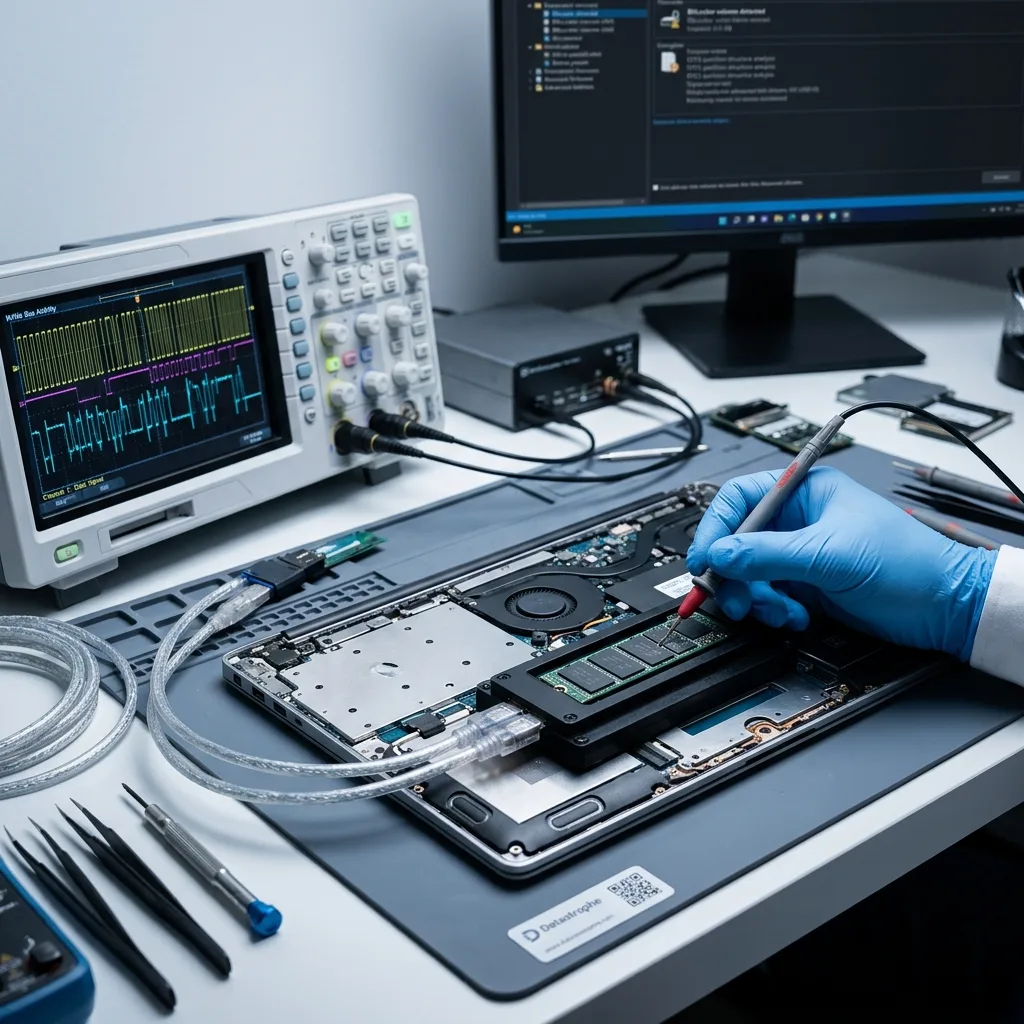
Document the host, storage position, interface and encryption dependencies before removing a drive or separating soldered storage from its system context.
Before storage is removed, Datastrophe records the laptop model, drive location, interface, encryption context, symptoms and previous work. This preserves the relationship between the media, TPM or account credentials and the device that originally accessed it, then sets the first acquisition and validation priorities.
An unstable drive is read in a controlled order to preserve accessible areas. For logical loss, writes and account changes are minimised while deleted or damaged structures are examined. When faults overlap, the least disruptive step is completed first.
Recovered documents, photos, mail and project files are tested using representative samples. File structure, dates and the ability to open or import content give a more useful measure than a headline capacity total.
- Acquire unstable storage in a controlled order
- Analyse user data from protected copies
- Validate important files and application stores
Selecting the safest recovery route
Drive stability determines acquisition, while partition, encryption and file-system evidence determine extraction. When several faults are present, the first action is the one most likely to preserve access to readable data.
Checking more than file capacity
Samples are chosen from important folders, dates and file types. Opening, parsing or importing them where practical separates usable content from corrupt files, incomplete fragments and unsupported detections.
Recovery priorities
Check the files and accounts that matter
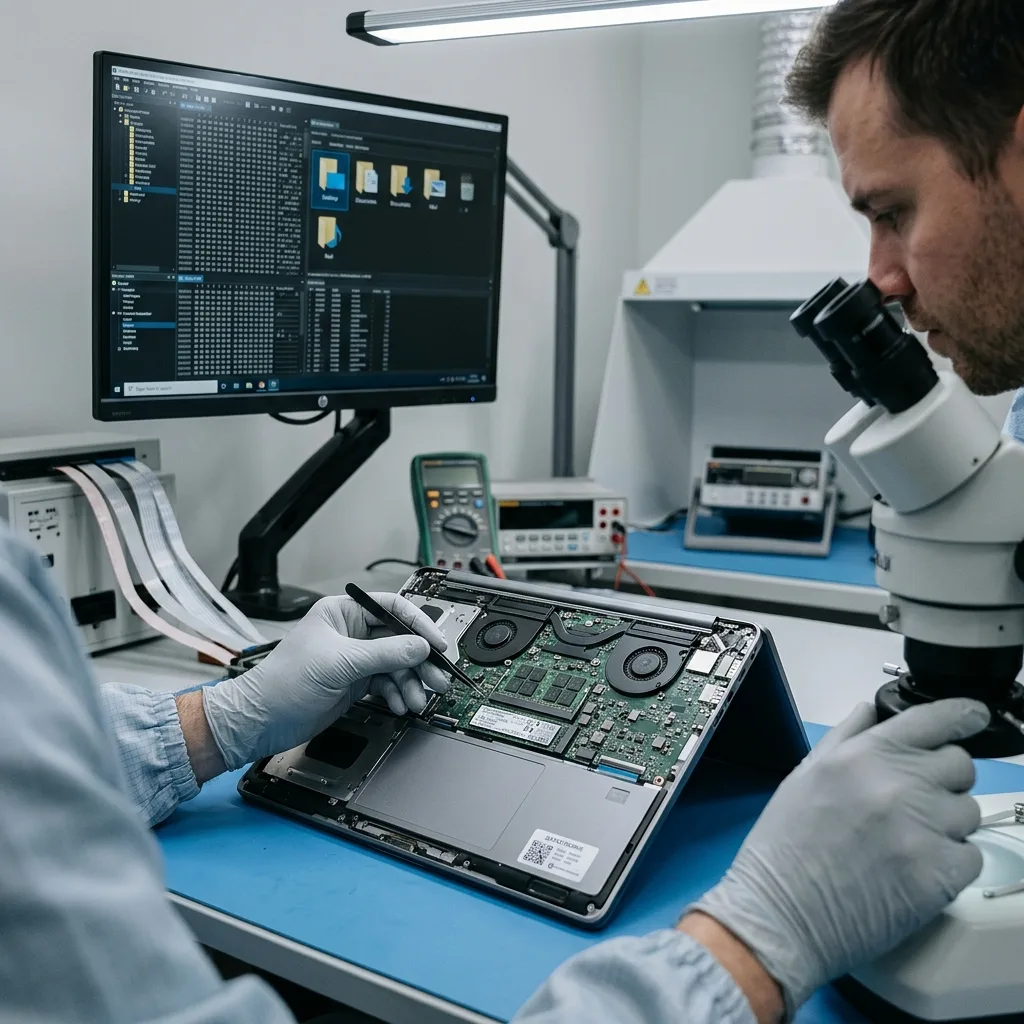
List essential user folders, mail stores, projects, photos and synced content, with dates and filenames where available.
Priorities commonly include Desktop and Documents folders, photographs, local email, project directories and incompletely synced content. Exact filenames, applications and date ranges give the recovery work useful targets instead of treating every system or cache file equally.
Prioritisation matters when the internal drive is unstable or only a narrow set of files is needed. It can reduce unnecessary handling of unrelated personal or business information and provides earlier evidence about whether the result addresses the main requirement.
Final checks separate complete files from partial content, placeholders, thumbnails and metadata-only records. An item in a search result has limited value until its content can be opened, imported or otherwise verified where practical.
- Name critical folders and applications
- Separate local files from online placeholders
- Describe any useful partial outcome
Why specific examples help
Known filenames, folder paths, dates and applications provide concrete checks for the acquired data. They can locate valuable content earlier and show whether the user-profile and application structures have been interpreted correctly.
Report each result category clearly
Usable files, damaged items, partial fragments and metadata-only records are identified separately. This prevents a large detection count from being mistaken for a complete recovery that is ready for practical use.
Secure handover
Return data without putting the damaged laptop back into service
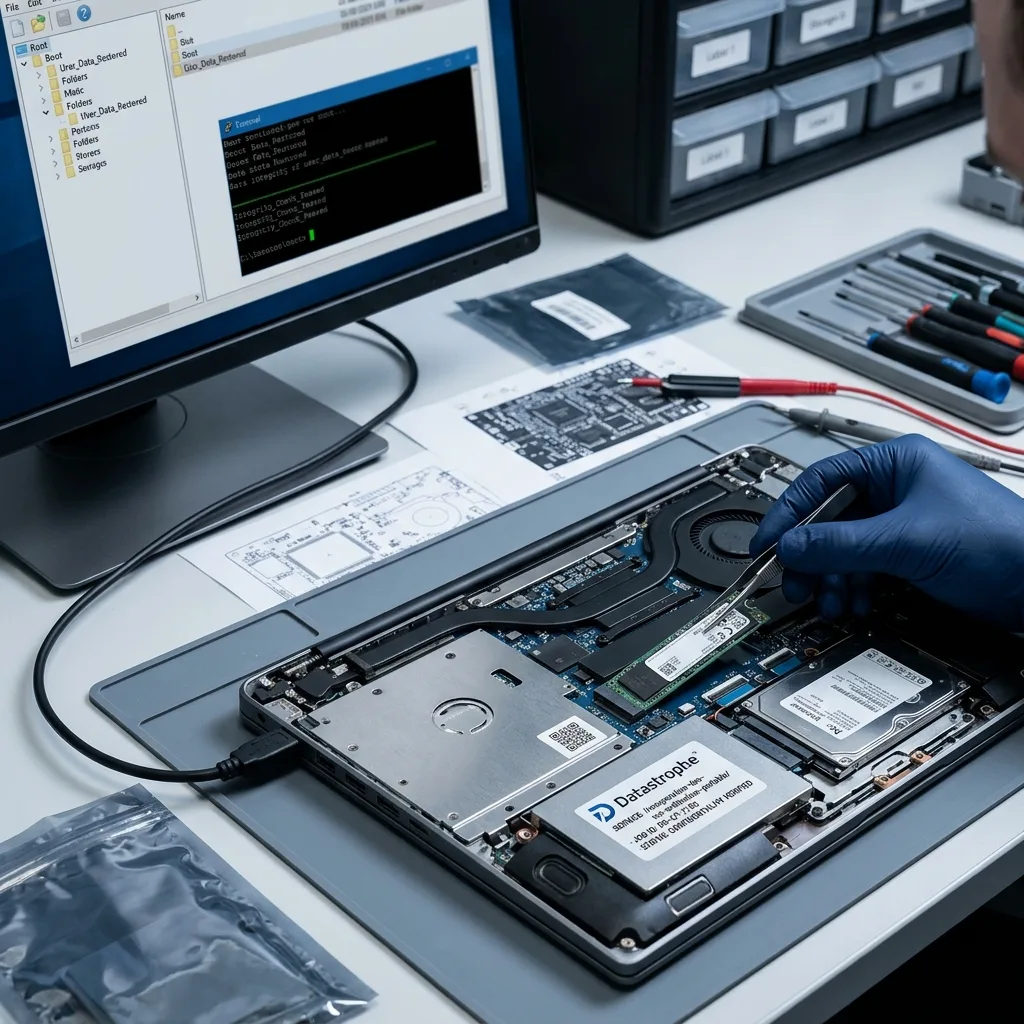
Supply checked files on healthy destination storage and leave the damaged laptop out of service while usable, partial and inaccessible results remain clear.
A laptop may hold personal records, messages, client documents, browser history and account data beyond the requested folders. Recovery access should stay within the authorised scope and be limited to what is necessary for acquisition, identification and validation.
Recovered files are placed on suitable destination storage or supplied in an agreed export format. If the result includes converted mail, an application database or a partial folder reconstruction, the handover explains what was produced and how it can be used.
The result also states where failed storage, overwritten blocks, unavailable keys or damaged application structures prevented access. These constraints remain part of the finding even when other priority files have been recovered successfully.
- Define the authorised recovery scope
- Choose suitable destination storage
- Record incomplete and inaccessible content
How recovered files are supplied
The destination and format are chosen for the available result. Converted mail, reconstructed folders and targeted exports are described clearly so they are not confused with the original working system or application.
Technical limits remain visible
Unreadable storage, overwritten content, missing encryption material and damaged databases can leave gaps. Reporting those gaps beside checked files supports an informed decision about how the recovered data can be used.
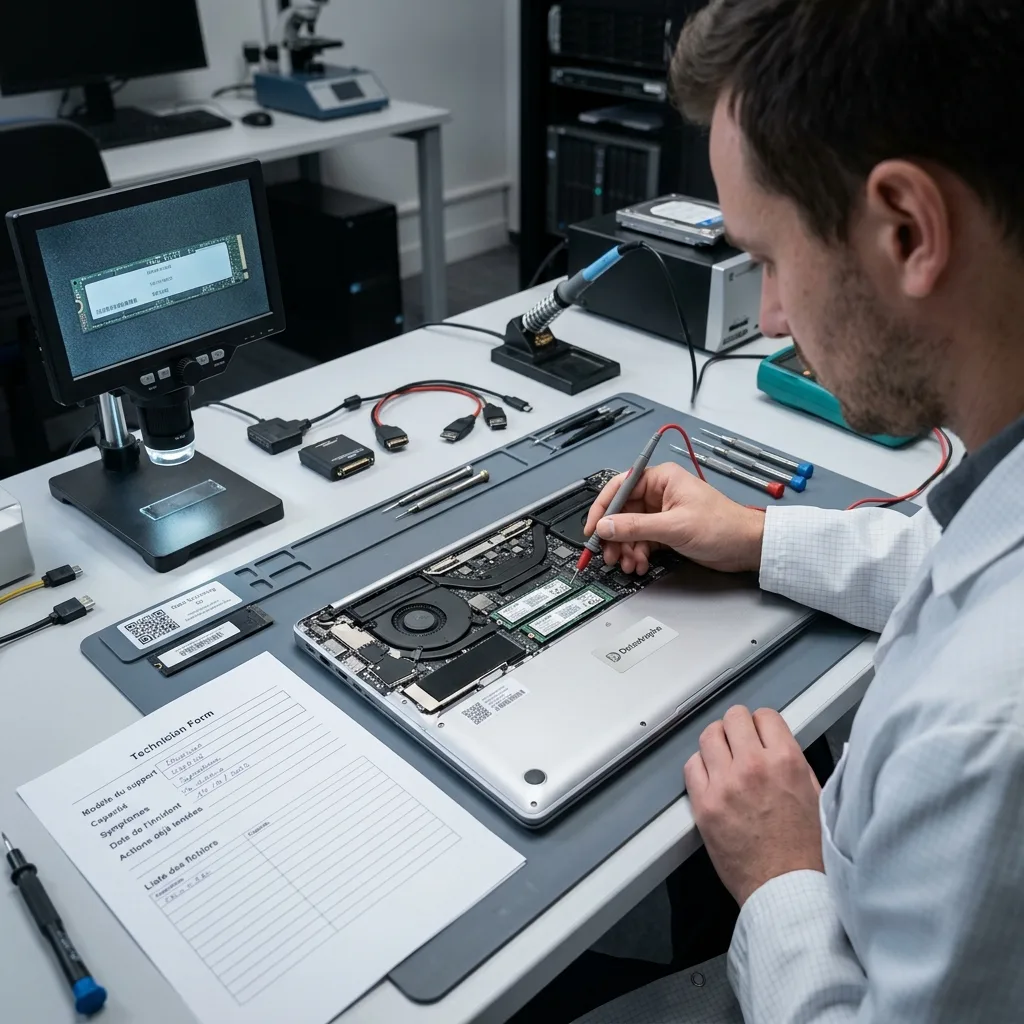
Case preparation
Prepare the laptop, charger, keys and case history
Send the laptop with relevant parts and provide its storage details, incident sequence, previous work and required files.
Provide the exact laptop model, internal drive details, capacity, symptoms, incident date, previous attempts and priority files. Photographs of error messages, ports and physical damage can help, along with the last known successful startup and any reset warning.
Keep the charger, power adaptor, removed drive, enclosure, cables, configuration details and partial backups with the case. Note any replacement parts or borrowed accessories, because a secondary item may help explain an access or storage fault.
Give a factual timeline covering impact, liquid, updates, password or BitLocker prompts, repair visits, dismantling and reinstall attempts. Also state what partial outcome would still be useful so the work can focus on practical value.
- Include the laptop and associated storage parts
- Describe repairs, resets and encryption prompts
- List priority folders, files and dates
Keep related parts and records together
Chargers, removed drives, adaptors, repair notes and photographs can clarify how the laptop and storage were configured. Keep each item with the case and identify every change made after the incident.
Describe the outcome you need
State the essential folders, file types, applications and date ranges, as well as any acceptable partial result. These details give the laboratory concrete targets for early checks and final organisation.
FAQ
Frequently asked questions
What should I do when a laptop suddenly stops starting?
Stop repeated starts, automatic repair and reinstallation. Record the symptoms and event sequence, keep removed parts with the laptop, and identify the local files required. If liquid is involved, do not keep applying power to test the computer.
Can every file be recovered from a failed laptop?
That cannot be known before assessment. The outcome depends on drive condition, overwriting, flash failure, file-system damage, encryption and available credentials. Files are reported as usable only when the acquisition and practical checks support that status.
Why provide a list of laptop files and applications?
Desktop folders, documents, mail stores, projects, photos and dates create useful search and validation targets. They are particularly important when storage is deteriorating or only part of a user profile can be acquired safely.
Can the original laptop or drive be used again after recovery?
Recovery is intended to copy data to separate storage, not to approve the failed equipment for reuse. A laptop or drive involved in unexplained data loss should be considered unreliable until it has been assessed independently for that purpose.
How are incomplete laptop recovery results reported?
The handover identifies unreadable areas, overwritten content, missing keys, damaged user profiles and incomplete application data. Usable files are separated from corrupt items, partial fragments, placeholders and records found only in metadata.
Media
Other expertise
- Data Recovery for Failed Internal Hard Drives Controlled recovery of files from internal hard drives affected by mechanical damage, bad sectors, formatting or lost partitions.
- External Hard Drive Data Recovery and Fault Assessment Recover files from dropped, unstable or unrecognised external drives, including USB bridge, enclosure, partition and physical disk failures.
- Recover Files from Failed SSD and NVMe Storage Technical SSD and NVMe recovery for controller faults, failed NAND, firmware problems, encryption and unreadable volumes.
- Recover Files from a Damaged USB Flash Drive Technically assessed recovery for USB drives with broken connectors, failed controllers, corrupted NAND, missing files or no detection.
- Memory Card Photo and Video Recovery Practical recovery of photographs and video from damaged, formatted or unreadable SD, microSD and CompactFlash cards.
- Recover Files from Failed Macs and Apple Storage Practical Mac recovery for damaged APFS or HFS+ volumes, FileVault issues, failed Apple SSDs, split Fusion Drives and liquid incidents.
- iPad and Tablet Data Recovery Professional tablet recovery for inaccessible iPads and other devices, covering flash storage, local files, encryption and reset risks.
- Recover Data from Virtual Disks and Snapshots Recovery of data from VMDK, VHDX, VHD and QCOW2 virtual disks, including snapshots, VMFS datastores, databases and damaged VMs.
- Recovering Data From RAID, NAS and Storage Arrays Recover data from failed RAID 0, 1, 5, 6 and 10 arrays, NAS units, servers, SHR, ZFS and Btrfs after disk, controller or rebuild faults.
- Recover Critical Data from Failed Servers Practical server data recovery for failed RAID arrays, databases, virtual machines, file shares and damaged file systems.
- Recover CCTV Footage from NVR, DVR and XVR Recorders Recovery of CCTV and security camera footage from NVR, DVR and XVR systems with damaged indexes, H.264/H.265 streams, RAID storage or failed exports.
- How ISO Class 5 Clean-room Recovery Protects Hard Drives See how ISO Class 5 clean-room conditions support hard drive recovery, from particle control and platter inspection to technical limits and cost.
 Data Recovery for Failed Internal Hard Drives
  Recover Files from Failed SSD and NVMe Storage
  Recover Files from a Damaged USB Flash Drive
  Memory Card Photo and Video Recovery
  Recover Files from Failed Macs and Apple Storage
  iPad and Tablet Data Recovery
  Recover Data from Virtual Disks and Snapshots
  Recovering Data From RAID, NAS and Storage Arrays
  Recover Critical Data from Failed Servers
  Recover CCTV Footage from NVR, DVR and XVR Recorders
  How ISO Class 5 Clean-room Recovery Protects Hard Drives
 Diagnostic assessment
Unsure about a storage device or fault?
Datastrophe assesses the risk before any recovery attempt and points you towards the safest next step.