
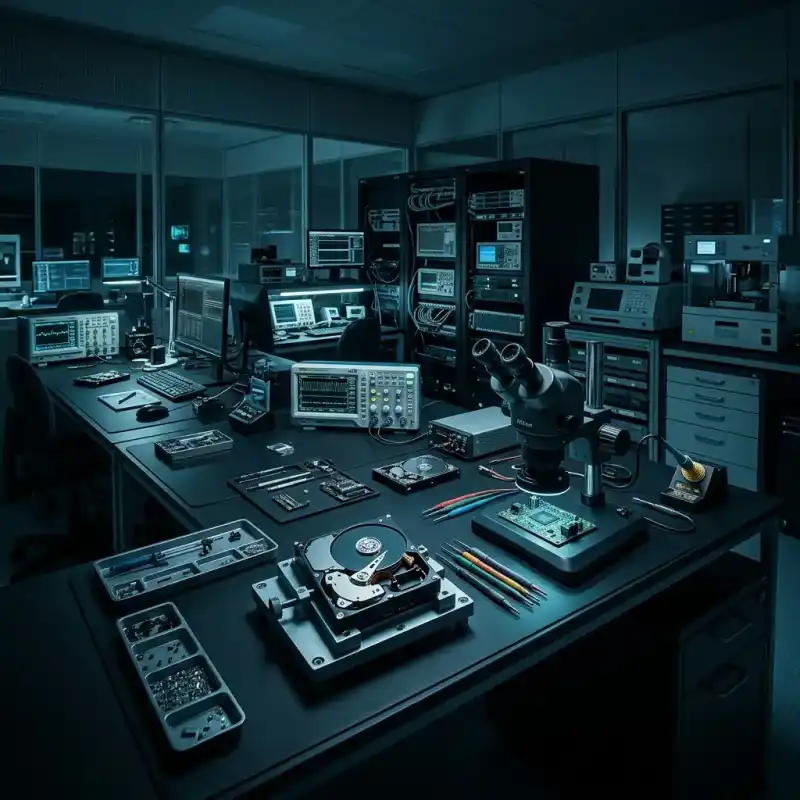
Laptop Data Recovery
A failed laptop may have a display, power, motherboard, storage or encryption fault. The data path must be identified before boot repair or reinstallation.
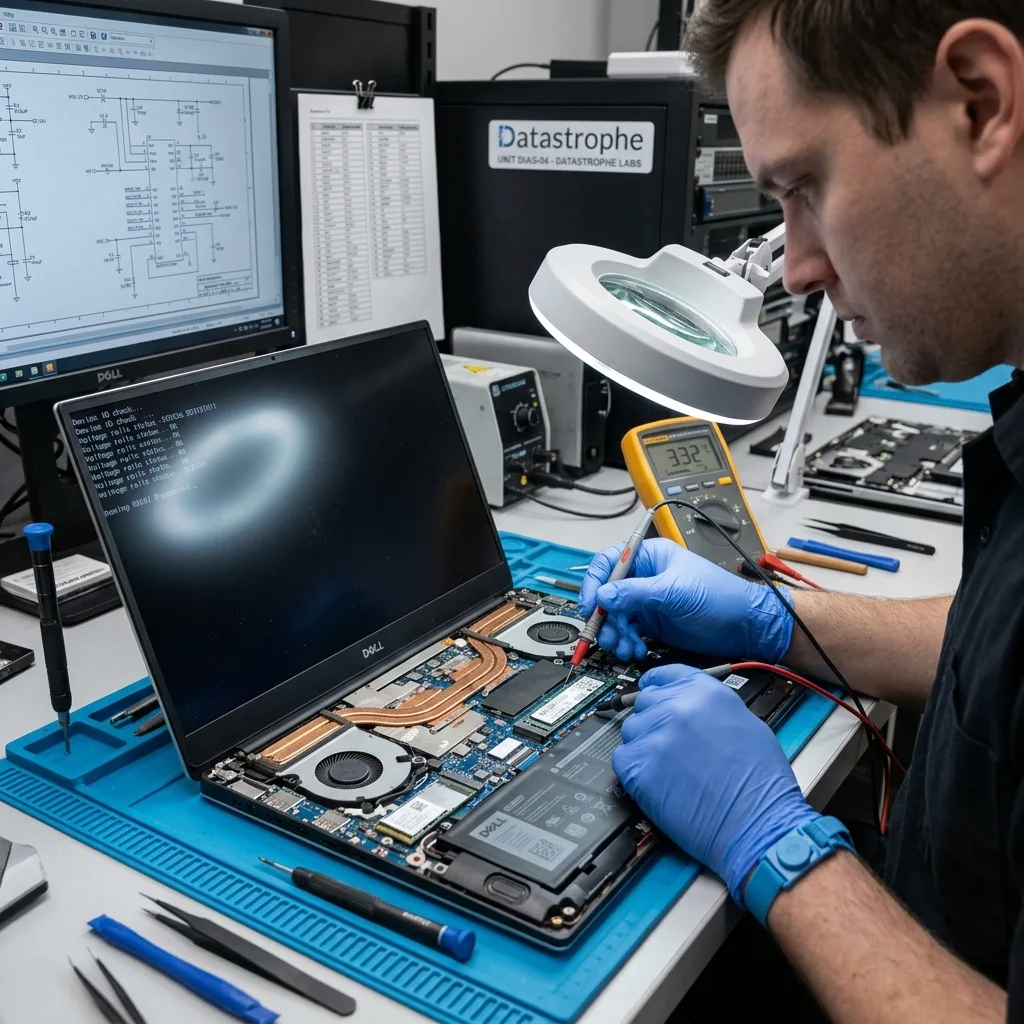
Failure layers
A black screen or boot loop does not prove that the files are lost
Display, power, firmware, motherboard, storage and Windows faults can produce similar symptoms but require very different first actions.
A laptop that appears dead may have a failed charger path, display backlight, memory fault or motherboard problem while its storage remains readable. A machine showing a logo then restarting may instead be encountering an operating-system, file-system or drive error. The visible symptom is a starting point, not a diagnosis.
Repeated boot attempts can trigger automatic repair, updates or journal changes on the original storage. They also keep power on a failing SSD or hard disk. Do not reinstall Windows, reset the PC or accept a repair prompt when the priority is the data rather than restoring the laptop to service.
The assessment records lights, sounds, fan behaviour, error messages, recent impact or update history and whether the storage is removable. Safe host tests are separated from media tests. If the fault is confined to the computer, authorised access may be established without altering user data; if the drive itself is unstable, acquisition takes priority.
Host-only fault
A display or power-stage problem can leave the SSD or hard disk intact. The storage and encryption relationship still need documenting before it is removed or connected elsewhere.
Storage fault
Clicking, severe slowdown, disappearing capacity or repeated I/O errors point towards the medium. Prolonged boot diagnostics are then avoided in favour of a device-specific assessment.
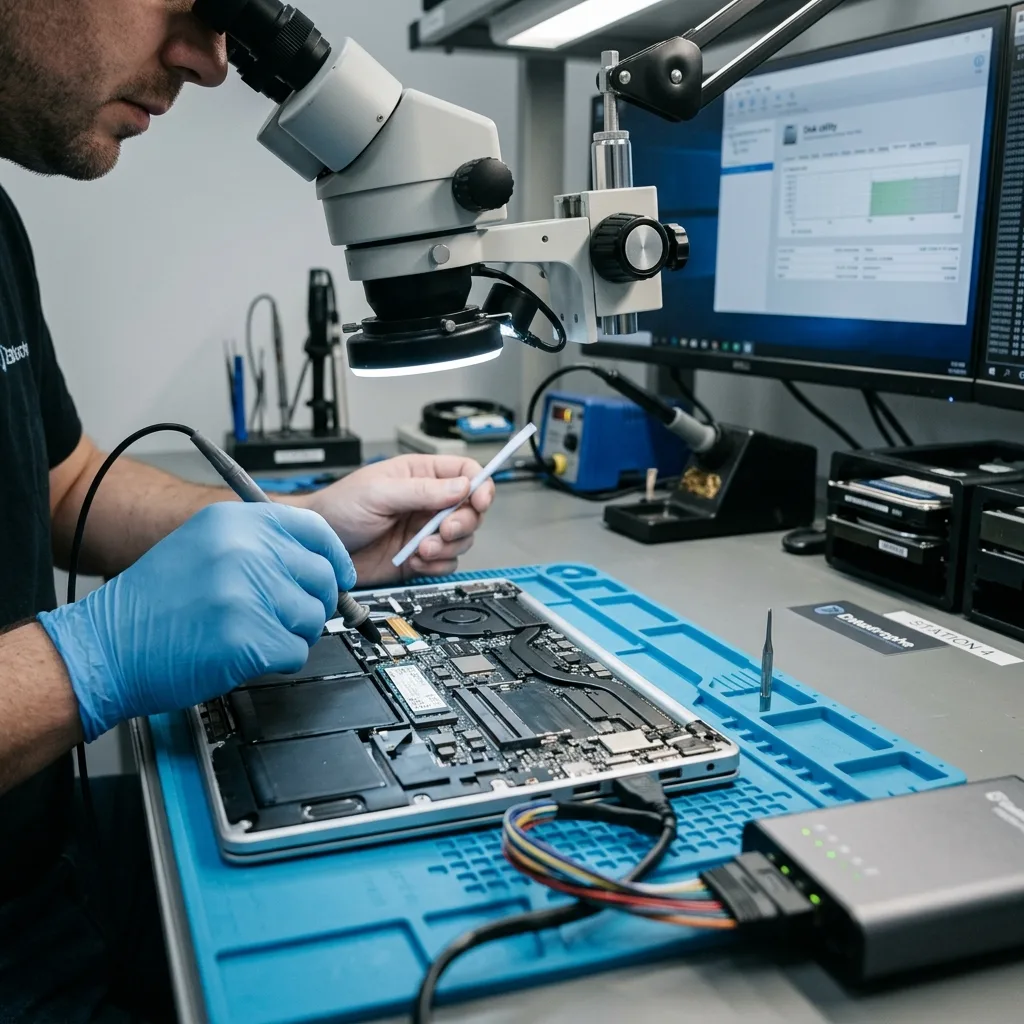
Immediate containment
Liquid and corrosion progress while power remains connected
After a spill, removing all power is more valuable than testing whether the keyboard or display still works.
Liquid can bridge conductors, damage regulators and begin corrosion beneath shields or fine-pitch components. A laptop may continue working briefly while residues create an unstable electrical path. Charging it to check the screen supplies energy to the fault and can damage storage, controller or security components that survived the spill.
Disconnect the charger, shut down if that can be done immediately without a prolonged boot, and do not use rice, a domestic oven or a hairdryer. If the battery is not safely removable, leave the machine off. Do not repeatedly press the power button as the laptop dries.
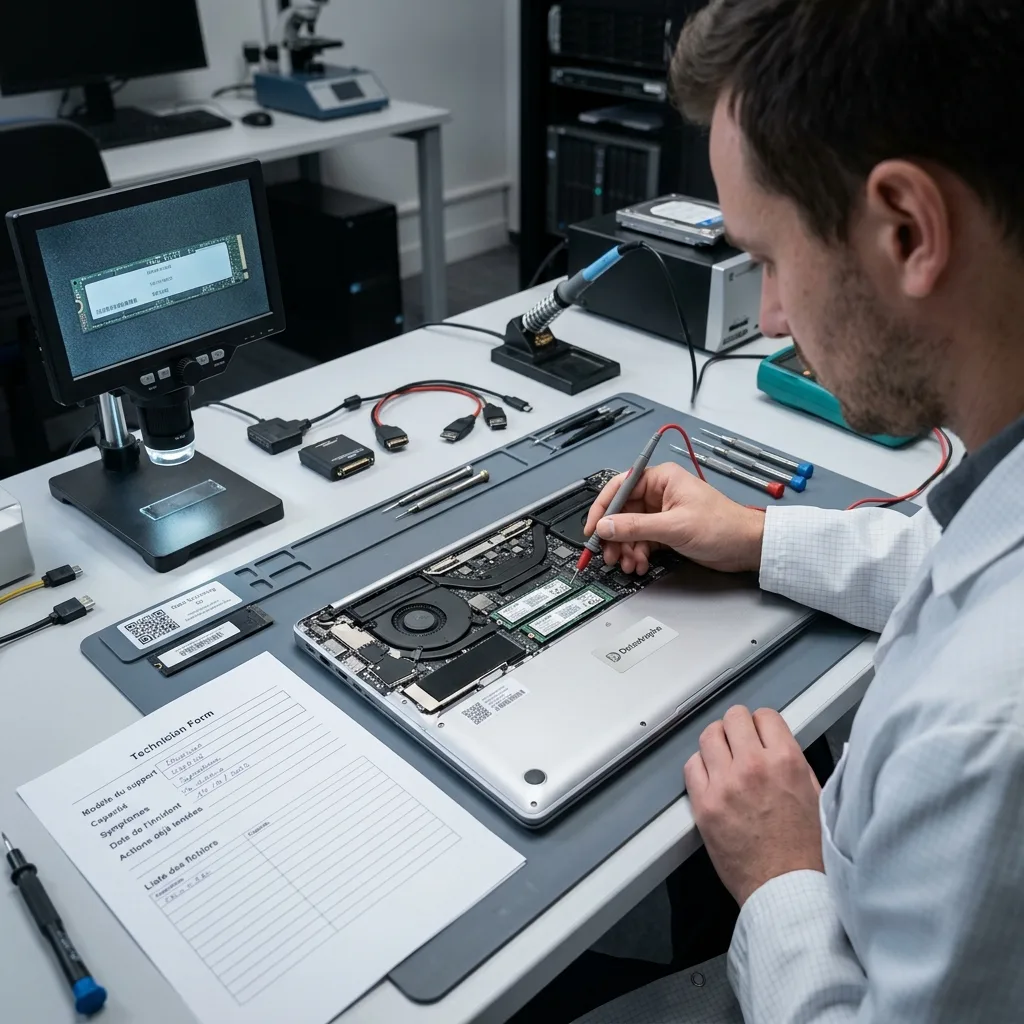
Electronic laboratory assessment documents the liquid type, affected areas and power state before cleaning or board-level stabilisation. This is not a cleanroom platter procedure unless a separate mechanical hard disk is diagnosed with internal damage. The purpose of board work is authorised data access, not cosmetic restoration or an assurance that the laptop can be returned to everyday use.
- Disconnect mains power and stop all charging attempts
- Do not apply heat, rice or unplanned cleaning chemicals
- Record the liquid type, time and actions already taken
- Keep the complete laptop available for host-bound storage
Spill evidence
Note whether the liquid was water, coffee, a sugary drink or salt water, and which side was affected. Keep the charger and do not remove corrosion evidence before assessment.
Storage exposure
Removable drives may be isolated after their context is recorded. Soldered storage remains dependent on the board, so stabilising host electronics can be essential for gaining decrypted access.
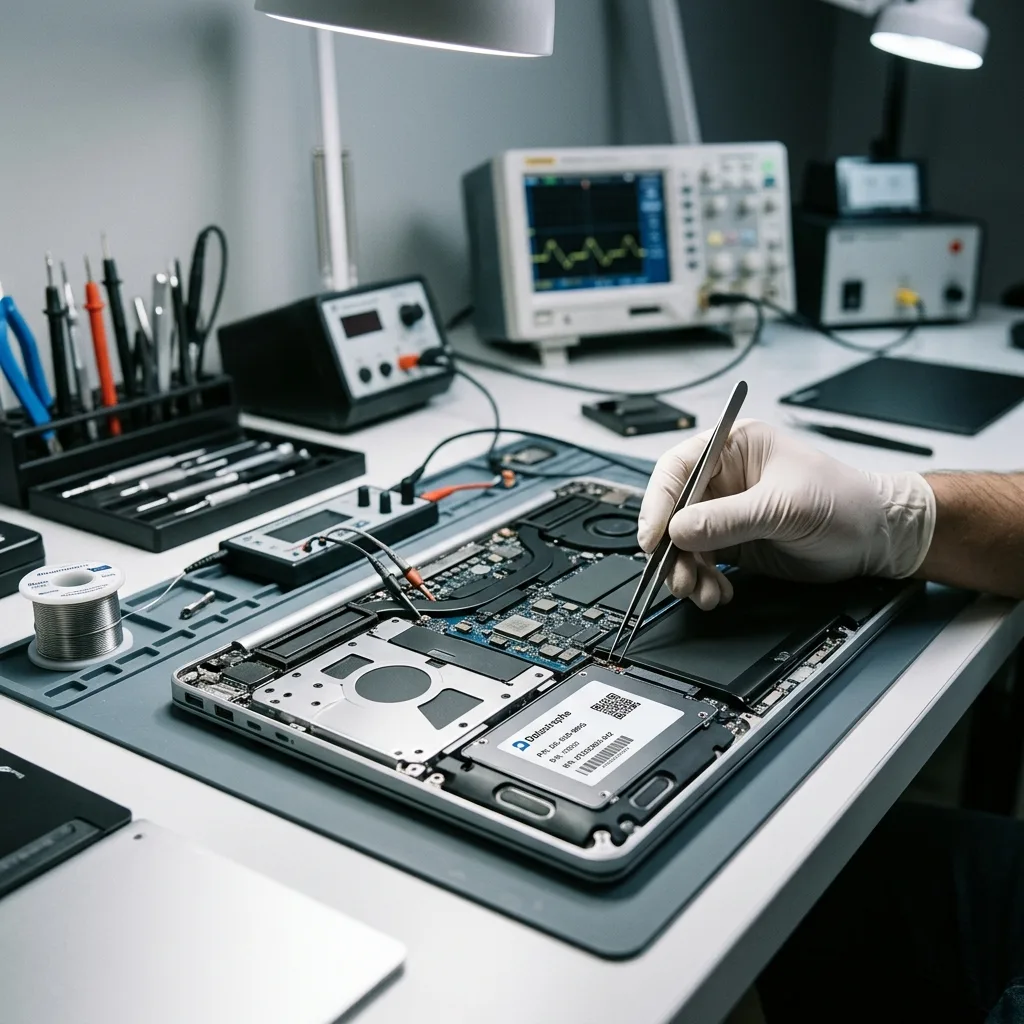
Authorised encryption
BitLocker and TPM context must survive the incident
A technically readable SSD can remain unusable if its recovery key, TPM relationship or authorised account information is lost.
Modern Windows laptops may enable BitLocker automatically through a Microsoft, work or school account. The TPM can release a key only when expected boot measurements and configuration are present. Moving the drive to another computer can therefore produce a recovery-key prompt even when no one remembers enabling encryption.
Preserve the original laptop, account access, printed or saved recovery keys and any device-management records held by the organisation. Do not clear the TPM, reset firmware defaults or remove the device from management until key escrow has been checked. A firmware change may alter the platform state needed for ordinary unlock.
Data recovery does not bypass BitLocker or manufacture an unavailable key. Legitimately supplied credentials are applied to a protected acquisition and handled as confidential case material. If the drive is complete but the key cannot be obtained, the result remains encrypted; that is a security boundary, not a failure that can be hidden behind a file count.
Personal laptop
Check the authorised Microsoft account and any printed recovery-key record. Preserve the exact device name and key identifier shown by the recovery screen.
Managed laptop
An employer or education provider may hold the key in its directory or management platform. The organisation should nominate the authorised contact before protected data is reviewed.
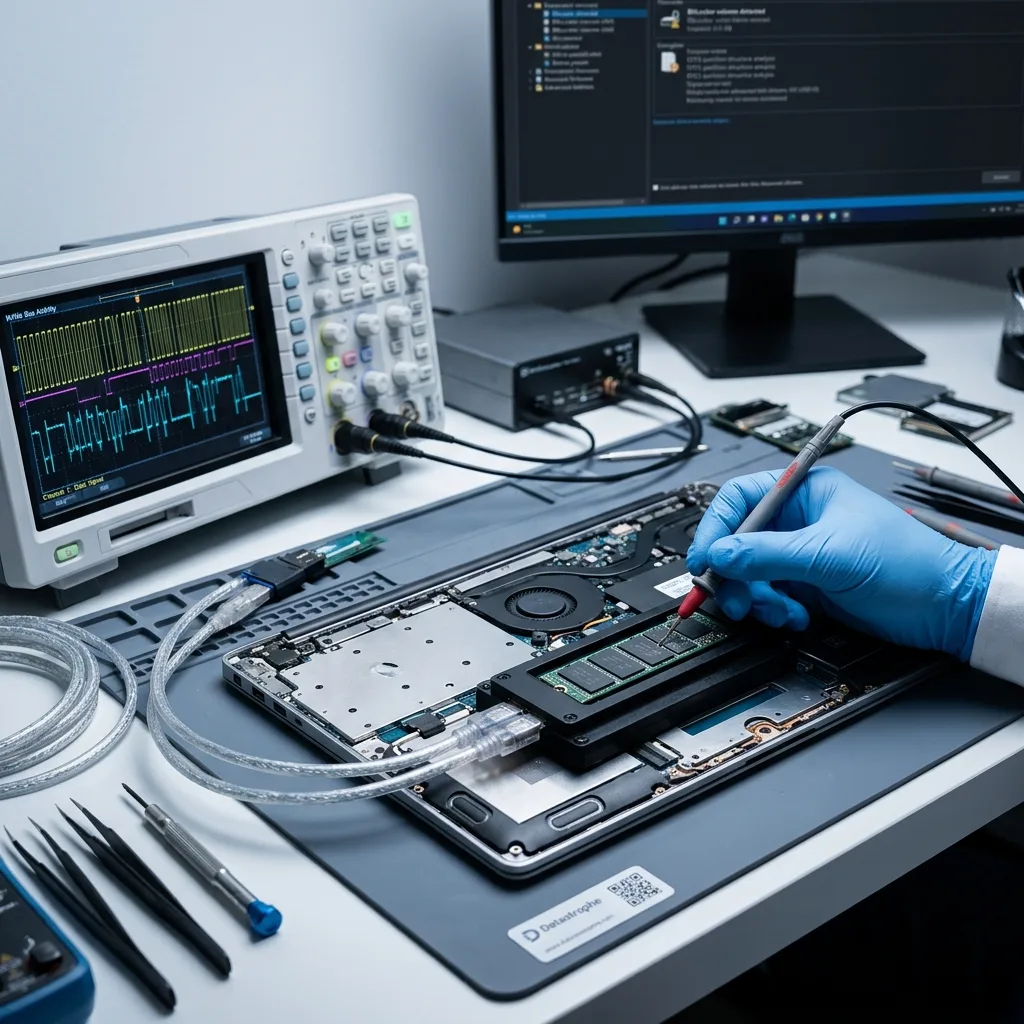
Architecture inventory
Storage should be removed only after its system context is documented
A laptop may contain a SATA hard disk, SATA SSD, NVMe module, soldered flash or more than one storage device.
Before opening the computer, record the model, firmware message, encryption state and drive arrangement. A small SSD may cache a larger hard disk, or separate devices may hold the system and project data. Removing only the obvious drive can miss the relevant volume or break a storage relationship.
A removable SSD or NVMe drive can be assessed independently when host context has been preserved. A mechanical hard drive needs its own sound, impact and sector-stability assessment. Soldered storage remains tied to motherboard power, controller and sometimes platform encryption.
Electrostatic and connector risks are controlled during removal. The device is not dismantled merely to make intake easier. If the laptop suffered impact or liquid, photographs of component positions and labels support reassembly and explain which parts were exposed before separate media acquisition.
- Record every drive, slot and printed identifier
- Preserve the original laptop and charger
- Identify caching, RAID or encryption before separation
- Label removed storage and protect it from static
Removable storage
The drive can be labelled, protected against electrostatic discharge and acquired through its native interface. Keep the laptop because keys, adapters or system configuration may still be required.
Soldered storage
Board stabilisation may be needed to restore the authorised path through the original controller. Removing flash packages can discard mapping or key relationships and is not a default step.
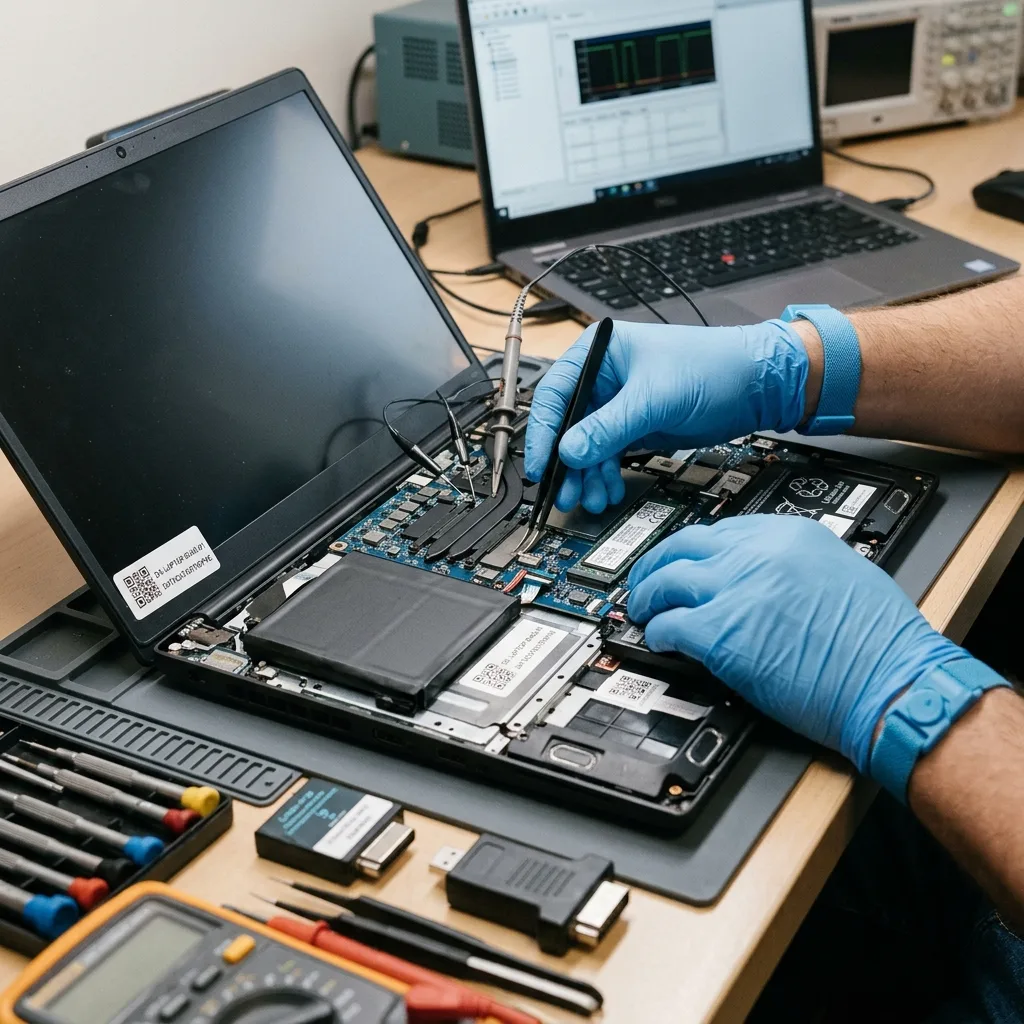
Source protection
Image the storage before repairing Windows or user profiles
Operating-system repair seeks a bootable machine; data recovery seeks the best preserved evidence and is performed from working copies.
Automatic Startup Repair, CHKDSK, a feature update or a fresh installation can write boot records, registry data, file-system metadata and temporary files. These actions may make Windows start while reducing recovery options for deleted, corrupted or unstable material. They also provide sustained load to a failing drive.
When the storage is stable enough, a sector-level acquisition records readable and unreadable regions without relying on Windows to boot. A deteriorating disk may require prioritised passes; an SSD requires attention to controller stability, TRIM and encryption. The protected image then supports partition, NTFS and user-profile reconstruction.
The data recovery process keeps repair experiments on copies. A successful boot of a copy is useful evidence, but it is not the only acceptance test. Documents, mail stores, browser profiles, project data and databases still need checks appropriate to their structure and the client's priorities.
Acquisition record
Logs identify unread areas, resets and significant device changes. They connect later file damage to the source condition rather than concealing gaps behind a completed copy job.
Logical reconstruction
NTFS records, shadow copies and application stores are assessed on separate storage. Repairs can be repeated or discarded without altering the best available source image.
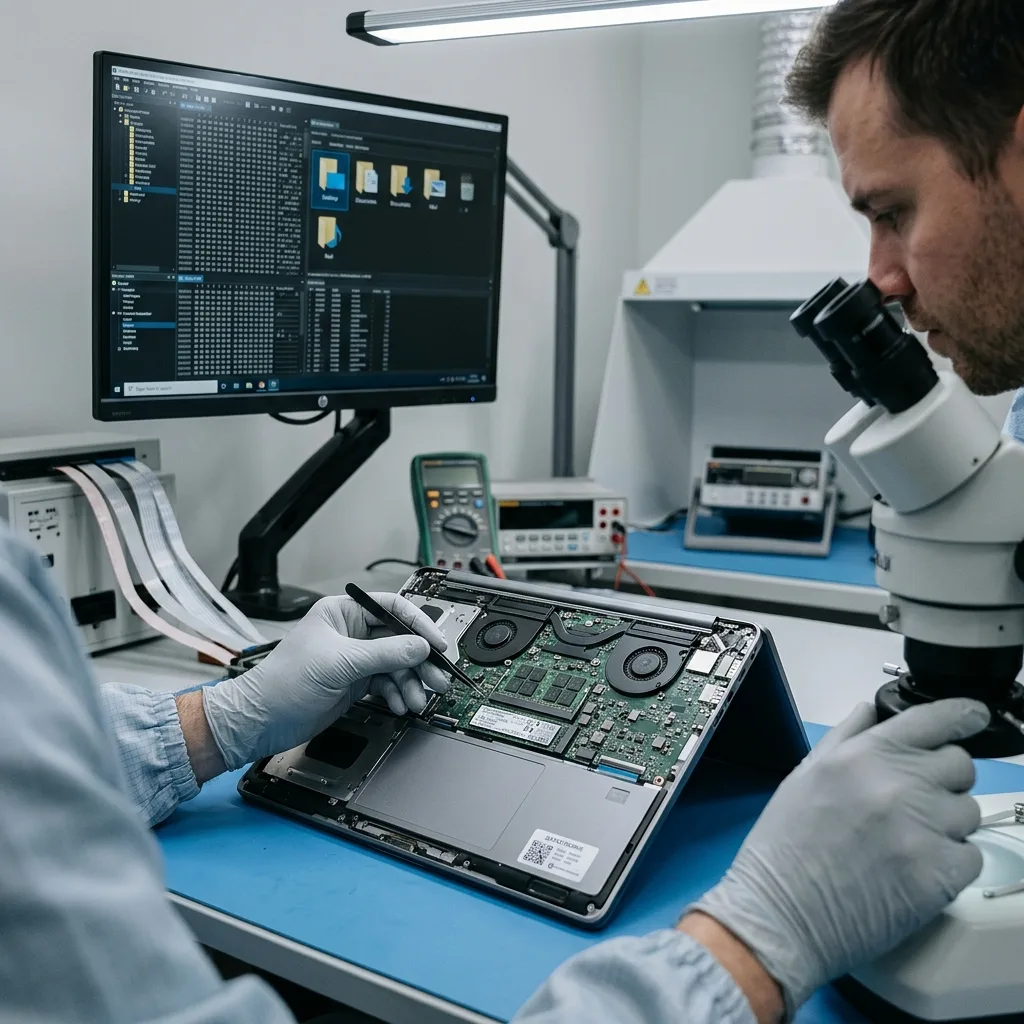
Useful outcome
Work files, mail and photo libraries need priority-led validation
Recovering a Windows profile folder is not enough if databases, mail stores or current project versions remain damaged.
The client identifies the accounts, folders and applications that matter: Desktop and Documents, Outlook or other mail stores, accounting files, source repositories, virtual machines, browser data or photo catalogues. Expected dates and version names help separate current work from caches and older synchronised copies.
Each format is checked appropriately. Office files and archives can undergo structural tests; mail stores may need folder and message sampling; databases require consistency review; photographs should decode beyond thumbnails. Cloud placeholders are distinguished from locally complete files so a directory entry is not mistaken for stored content.
Recovered material is handled confidentially and reviewed only to the extent needed for the agreed priorities. The report separates verified, partial, placeholder-only and unreadable data. File counts and gigabytes provide inventory, while representative content checks show whether the result is practically usable.
- List the authorised user profiles and priority applications
- Give examples of current filenames and expected dates
- Identify cloud placeholders and offline synchronised folders
- Choose representative files for confidential validation
Profile structure
User SIDs, permissions and application paths may need interpretation after extraction. Data is exported into an accessible structure without silently discarding original metadata that supports context.
Application data
Mail, accounting, design and development stores can contain interdependent files. Their validation uses representative operations or exports rather than checking only that the main file opens.
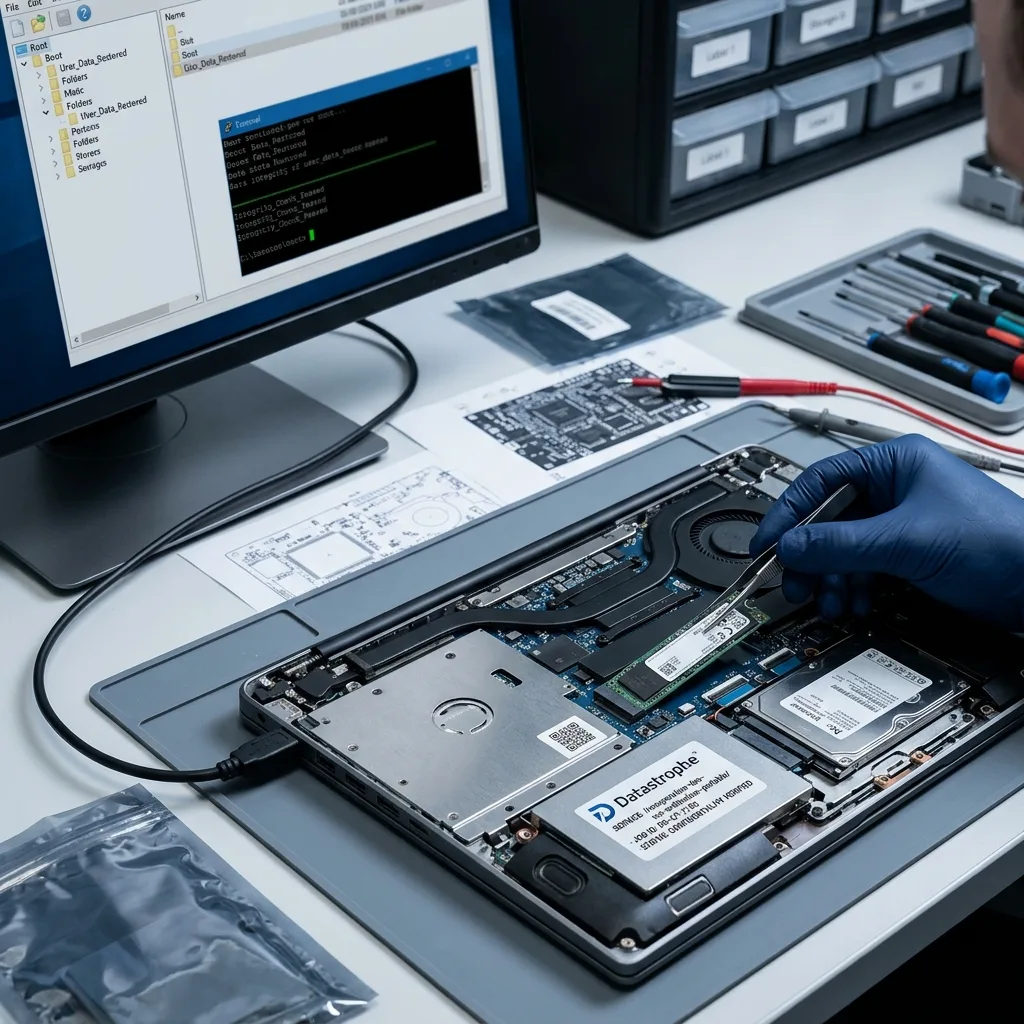
Delivery boundary
Recovered data is returned separately from the damaged laptop
The objective is a verified data set on healthy storage, not an unsupported promise that the incident laptop is safe to resume using.
A motherboard stabilisation, display workaround or temporary component repair may create an acquisition window. It does not certify the full computer for continued service. Liquid residue, battery damage or an intermittent power fault can persist even after the files become accessible.
The recovery result is copied to separate healthy media with capacity and file-system choices agreed for the receiving environment. Authorised encryption keys are not embedded in an unprotected report. The original laptop and source storage remain controlled until priorities have been reviewed and any retention decision is confirmed.
Validation and repair have different acceptance criteria. A repair asks whether the laptop operates; recovery asks whether the required data is present, usable and documented. Known unread sectors, missing keys, damaged application stores and untested specialist formats remain visible in the outcome.
Healthy destination
Delivery storage is checked before handover and is not the failed device. Large files, macOS compatibility or organisational encryption requirements are discussed before export.
Source decision
Return, retention or secure destruction follows the client's authority and applicable requirements. No disposal occurs merely because a preview or replacement laptop exists.
Countrywide service
Keep the complete laptop, charger and recovery-key context together
Datastrophe supports laptop cases from across the United Kingdom through arranged intake. The initial review confirms whether the complete computer, charger and recovery-key context must accompany the storage.
Provide the exact laptop model, operating system, symptoms, incident chronology, storage type if known and every action already attempted. State whether the machine was dropped, wet, overheated, updated, reset or opened. Photograph visible damage and error messages without powering an unsafe device merely to reproduce them.
Send the complete computer when host-bound storage, encryption or board damage may be relevant. Do not place a loose charger against the laptop; wrap accessories separately inside a rigid cushioned parcel and follow battery transport requirements. Removable drives should stay installed unless the assessment requests separation.
Use Request a quote to supply priorities and evidence. Pricing information explains why host electronics, media condition and encryption change the scope. The diagnosis and agreed intake arrangements determine the quotation, handling destination and realistic timescale.
- Stop boot and charging attempts after liquid or electrical damage
- Keep the complete laptop available for host-bound access
- Preserve authorised recovery keys and account records
- Confirm packaging, battery and dispatch instructions before sending
Key and account list
Locate BitLocker identifiers, authorised account access and any organisation contact without sending secrets prematurely. Note which profile and device each record belongs to.
Priority data list
Identify folders, applications, dates and representative files that matter most. This guides acquisition and gives the final review concrete acceptance checks.
FAQ
Frequently asked questions
Does a black laptop screen mean the storage has failed?
No. Display, charger, power-stage, memory, firmware and motherboard faults can leave the SSD or hard disk intact. Conversely, a storage fault may cause a boot loop while the screen works normally. Avoid reset or reinstall actions. A diagnostic assessment separates host and media layers and preserves encryption context before the storage is removed or subjected to sustained reads.
What should I do immediately after spilling liquid on a laptop?
Disconnect mains power and stop charging or boot attempts. If the battery cannot be removed safely, leave the computer off. Do not use heat, rice or unplanned cleaning chemicals. Record the liquid type, affected side and any power-on attempts. Keep the complete laptop because soldered storage, controller and security components may depend on board-level stabilisation for authorised access.
Can laptop data be recovered without a BitLocker key?
Readable encrypted sectors still require an authorised key or supported account route to become files. Preserve the original laptop, TPM state, Microsoft or organisation account records and the key identifier shown by any prompt. Recovery cannot bypass lawful encryption or manufacture a missing secret. An image may be technically complete yet remain undecodable until the correct key is supplied.
Should Windows Startup Repair run before the drive is imaged?
Not when the data is the priority and no protected copy exists. Startup Repair, CHKDSK, updates and reinstallations can write file-system and operating-system data to the source. A stable device should be acquired first; a failing device needs its own safety plan. Repair can then be tested on a working copy without sacrificing the best available original state.
Will the recovered data be returned on the repaired laptop?
The standard recovery outcome is a verified data set on separate healthy storage. Temporary board or connector work may only create an acquisition window and does not certify the damaged laptop for everyday use. Return, retention or repair of the computer is a separate decision. Priority files are checked, known gaps are reported and the client confirms the source disposition.
Media
Other expertise
- Hard Drive Data Recovery Hard drive data recovery for clicking, impact damage, unstable sectors and corrupted file systems, based on a controlled technical evaluation.
- External Hard Drive Data Recovery External hard drive data recovery for USB bridge faults, power damage, impact, enclosure encryption and volumes that no longer mount.
- SSD and NVMe Data Recovery SSD and NVMe data recovery for controller, NAND, firmware and FTL faults, TRIM, damaged file systems and encrypted volumes.
- USB Flash Drive Data Recovery USB flash drive data recovery for broken connectors, damaged circuit boards, controller failure, unstable NAND and deleted files.
- Memory Card Data Recovery Memory card data recovery for formatted SD, microSD and CF media, NAND faults, missing DCIM folders and damaged RAW photographs or video.
- Apple Mac Data Recovery Apple Mac data recovery for APFS corruption, FileVault, T2 or Apple silicon systems, failed SSDs, Fusion Drive and macOS start faults.
- Tablet Data Recovery Tablet data recovery for broken displays, liquid damage, logic-board failure, boot loops and encrypted internal flash storage.
- VMDK and VHDX Virtual Disk Data Recovery VMDK, VHDX and virtual disk data recovery for broken snapshot chains, missing parent files, thin provisioning and damaged datastores.
- RAID, NAS and Storage Array Data Recovery RAID and NAS data recovery after multiple disk failures, an interrupted rebuild, lost member order, parity errors or an inaccessible pool.
- Business Server Data Recovery Server data recovery after storage, file-system, database or operating-system damage, with business-critical services prioritised.
- CCTV Data Recovery from NVR, DVR and XVR Recorders CCTV data recovery from NVR, DVR and XVR recorders with empty calendars, failed disks, corrupt indexes, proprietary codecs or overwritten footage.
- Data Recovery Laboratory Work in an ISO 5 Class 100 Cleanroom ISO 5 Class 100 cleanroom procedures for mechanically damaged hard drives, failed head assemblies, platter inspection and controlled sector acquisition.
 Hard Drive Data Recovery
  SSD and NVMe Data Recovery
  USB Flash Drive Data Recovery
  Memory Card Data Recovery
  Apple Mac Data Recovery
  Tablet Data Recovery
  VMDK and VHDX Virtual Disk Data Recovery
  RAID, NAS and Storage Array Data Recovery
  Business Server Data Recovery
  CCTV Data Recovery from NVR, DVR and XVR Recorders
  Data Recovery Laboratory Work in an ISO 5 Class 100 Cleanroom
 Diagnostic assessment
Unsure about a storage device or fault?
Datastrophe qualifies the risk before any recovery attempt and points you towards the safest next step.