
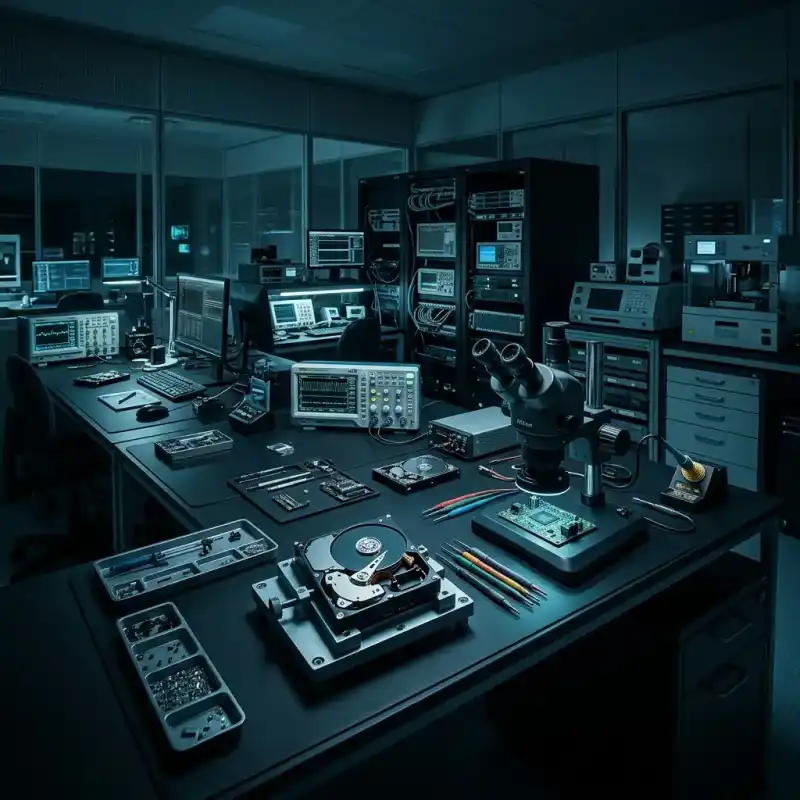
Tablet Data Recovery
Tablet storage is usually soldered and encrypted. Display condition, board electronics, passcode and operating-system state determine whether authorised data access remains possible.
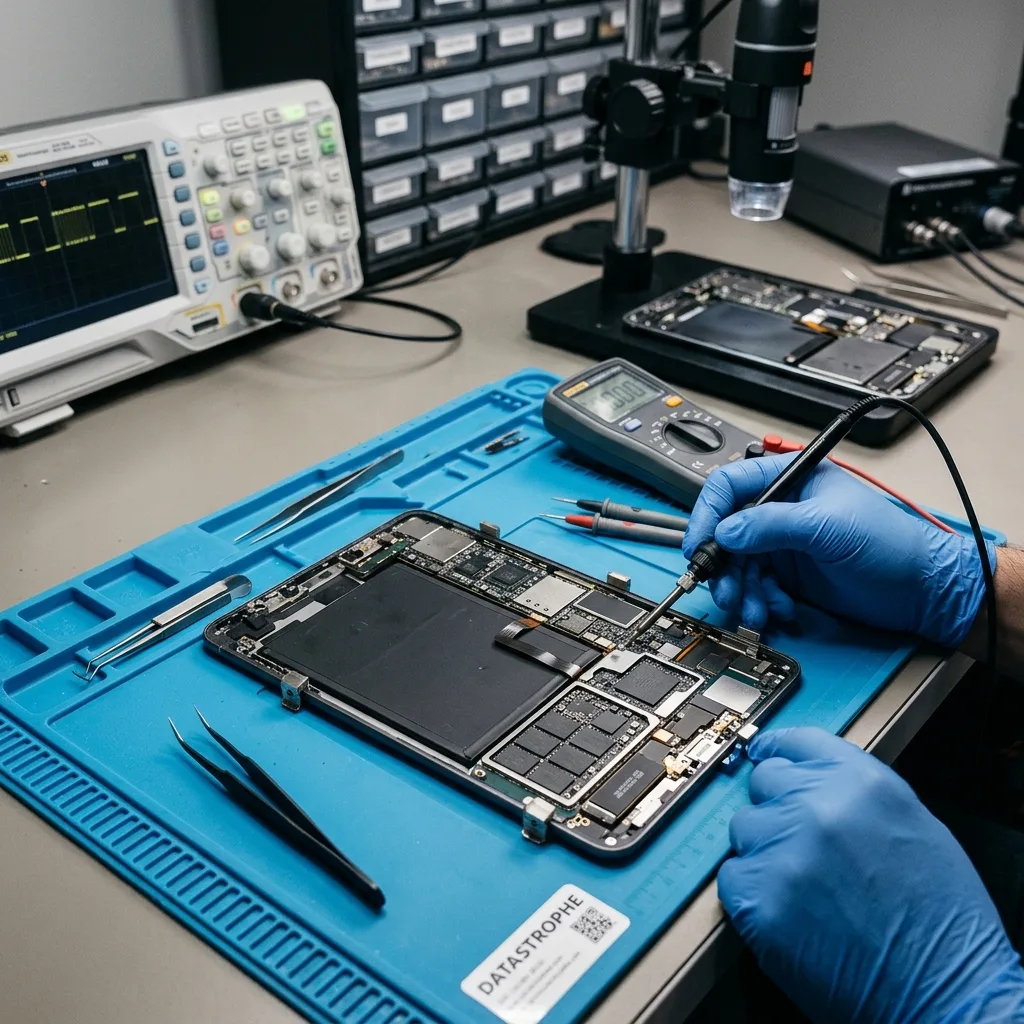
Data inventory
First separate local tablet data from synchronised content
A photograph visible on another device may be a cloud copy, while an application project or offline document can exist only inside the failed tablet.
Before hardware work, identify the accounts and services legitimately associated with the tablet. Check available cloud portals, another authorised device and recent backup records without issuing a remote erase. This can reveal which photographs, notes or documents are already safe and which local items justify recovery.
Synchronisation is not the same as backup. Deletion may propagate across devices, an application may never have uploaded its private container, and an optimised gallery can hold only previews locally. Conversely, a thumbnail on the failed tablet does not prove that the original file was stored there.
Do not sign the tablet out, remove it from device management or trigger a remote reset while the inventory is incomplete. Record the last successful sync, offline work and priority applications. A removable memory card is preserved and assessed separately from soldered internal flash.
Likely synchronised data
Contacts, calendars, cloud photo libraries and some note services may have server copies. Confirm content and dates through an authorised account rather than assuming a successful sync.
Likely local data
Offline downloads, application databases, unsent drawings, cached attachments and files in private containers may depend on the original tablet and its decrypted operating state.
Immediate containment
After a drop or liquid exposure, stop charging attempts
A broken display can hide a working device, but a damaged battery or wet logic board makes repeated power testing unsafe for both data and hardware.
A fall may damage the screen, touch layer, connector, board or soldered components while internal storage remains intact. Entering a passcode blindly can cause lockout delays or an erase policy. Do not keep reconnecting the charger merely because the display is black.
Liquid can bridge conductors and start corrosion under shields after the exterior appears dry. Heat, rice and domestic cleaning do not remove conductive residues reliably. Power should remain off until battery condition, charging path and board contamination have been assessed.
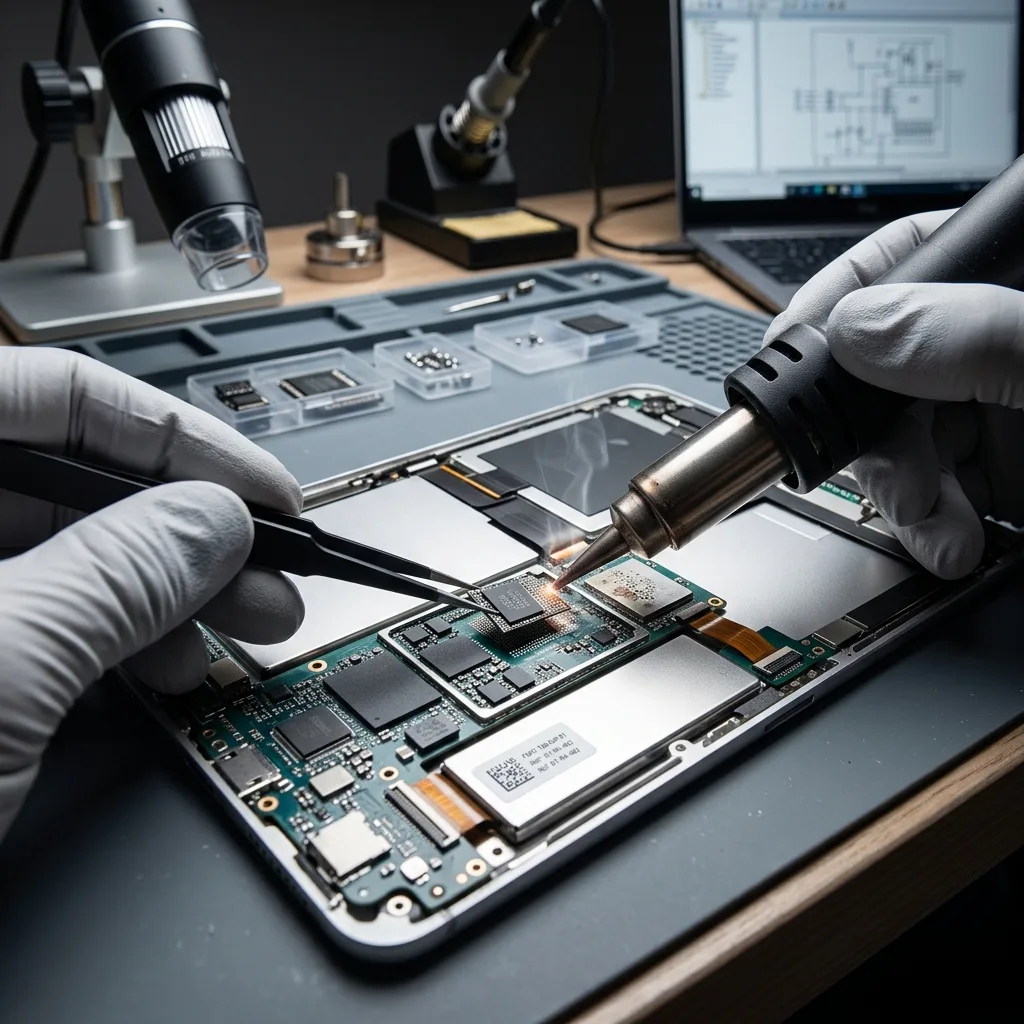
Electronic laboratory handling can stabilise power, temporarily restore or substitute the display path, or repair a local board fault to obtain authorised access. This is not mechanical cleanroom work: a tablet has no exposed hard-drive platters. The goal is a controlled data export, not a promise that the damaged device will be restored for everyday use.
- Disconnect the charger and stop repeated power-button presses
- Do not enter a passcode blindly through a broken display
- Avoid heat, rice and unplanned liquid cleaning
- Record the incident, liquid type and previous attempts
Display-only damage
A known functional state, sounds or connection history may support a screen-path diagnosis. Passcode entry is attempted only with clear visual feedback and owner authority.
Board or battery damage
Heat, swelling, corrosion or abnormal current requires isolation. Do not post or carry a visibly damaged battery until case-specific transport instructions have been confirmed.
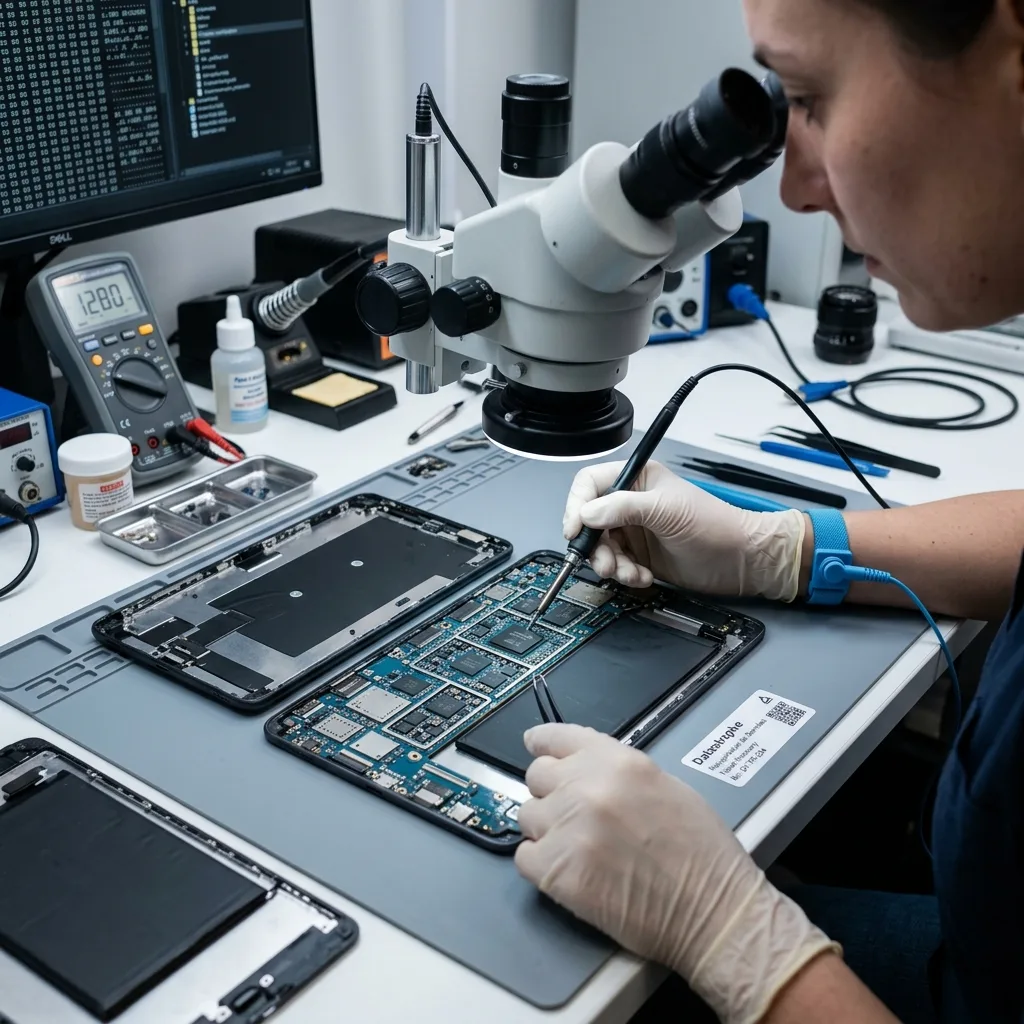
Authorised access
Passcode, encryption and security hardware remain tied to the tablet
Raw memory is normally encrypted, so preserving the original processor, security state and known credentials is central to recovery.
Modern iPadOS and Android tablets encrypt user data with keys protected by hardware and the passcode. Secure components, processor state and operating-system policy work together. Removing a flash package does not produce an ordinary readable disk image and may discard the practical route to decryption.
Preserve the exact passcode, authorised account, device-management records and any recovery information. Do not change account settings casually, because a new online password may not unlock the local device state. Corporate tablets require an authorised organisational contact and confirmation of any compliance or remote-management controls.
Recovery does not bypass passcodes, activation controls or lawful access restrictions. Electronic work seeks to restore enough of the original authorised path for export. If essential security hardware or keys are destroyed, physically readable flash can remain cryptographically useless, and that limit must be disclosed before work proceeds.
Known passcode
Supply it only through an agreed secure method after authority is confirmed. Record whether it is numeric, alphanumeric or recently changed without making further guesses.
Managed device
An organisation may hold escrow, backup or policy information. Preserve management records and prevent remote wipe while the authorised recovery scope is being established.
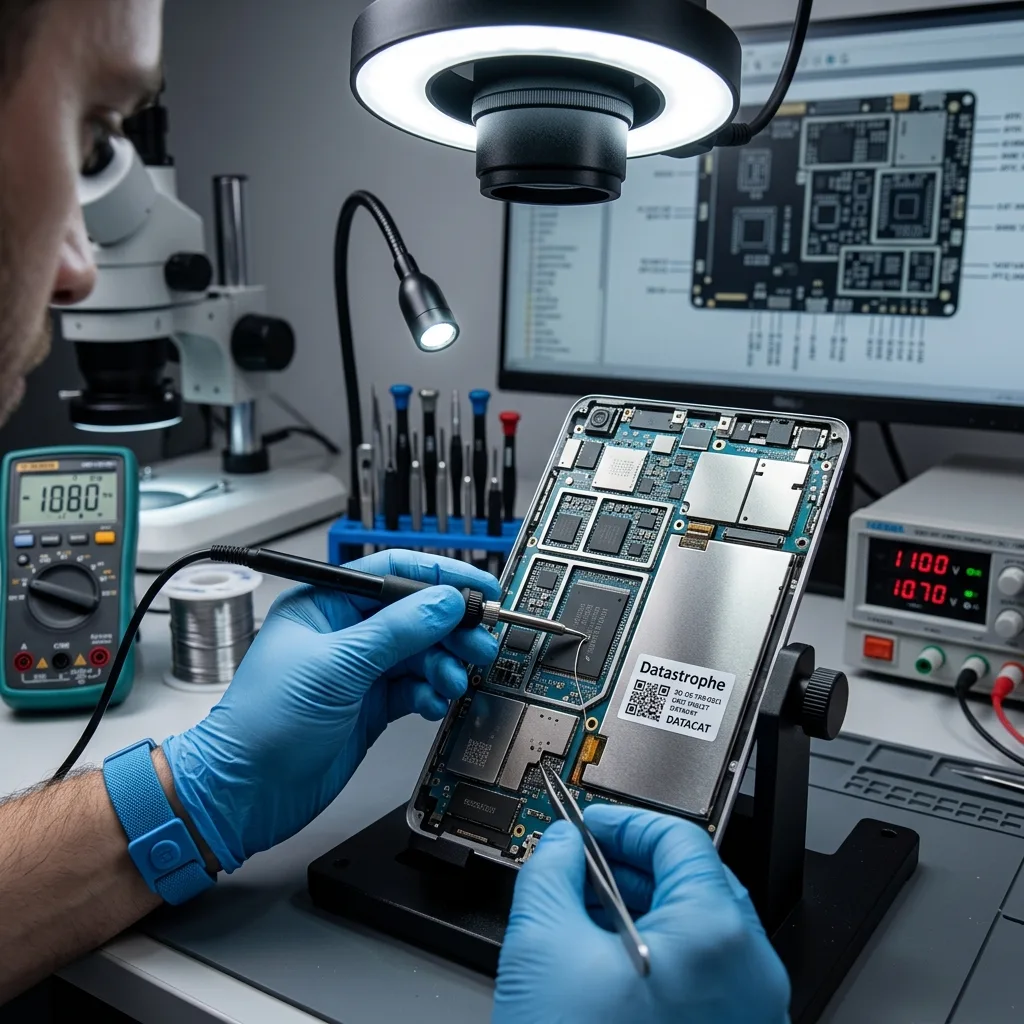
Destructive actions
Factory reset and restore erase the local evidence being sought
A reset is a serviceability procedure for the tablet, not a recovery method for data that exists only on its encrypted storage.
Factory reset replaces key and account state and prepares a new user environment. Restoring a backup can overwrite the present local state with an older snapshot. Operating-system updates may also modify storage, application databases and the boot path before the missing data has been inventoried.
Do not accept prompts to erase, initialise, restore or set up the tablet as new. Remote erase through an account or management console is equally destructive even though it happens away from the device. Once encryption keys are invalidated, surviving flash pages may no longer be interpretable.
If a confirmed backup exists, it is examined separately and never restored onto the only affected tablet before acquisition. Backup dates, application coverage and whether encrypted content is included are checked. A cloud or computer backup can solve part of the incident while still omitting recent local application data.
- Do not factory-reset or set the tablet up as new
- Do not restore a backup onto the affected device
- Prevent remote erase through account or management tools
- Verify backup date and application coverage separately
Backup verification
Check the backup timestamp, device identity and included applications through an authorised account. A listed backup is not accepted until representative priority content can be confirmed.
Preserve current state
Keep the tablet off or stable as advised, retain account records and document every prompt. Recovery decisions are based on the unchanged device and verified external copies.

Recovery route
Board stabilisation seeks a decrypted export before destructive flash work
When storage is soldered and encrypted, the least intrusive useful route is often to restore controlled operation through the original electronics.
Diagnosis checks battery safety, power rails, charging, display path, processor response, storage communication and operating-system state. A local electronic repair may establish a limited boot or trusted connection long enough to unlock and export data with the owner's authority.
Direct flash acquisition is considered only when technically meaningful. Modern devices often bind encryption to the processor or security hardware, so a chip read can capture encrypted pages without a usable key path. Destructive preparation can also eliminate the possibility of board-level access.
The method is selected according to technical evidence and its ability to preserve usable data, not its apparent complexity. A temporary screen or board repair is documented as an acquisition aid. It does not certify the battery, radio, chassis or logic board for continuing use, and recovery does not include returning the tablet as an ordinarily repaired device.
Controlled start-up
Power is applied only after electrical condition is understood. Temperature, current and boot behaviour are monitored while priority data is exported to separate storage.
Acquisition limits
A boot loop, damaged security component or unsupported operating-system state may prevent decrypted access. Feasibility and stop conditions are explained before intrusive work.
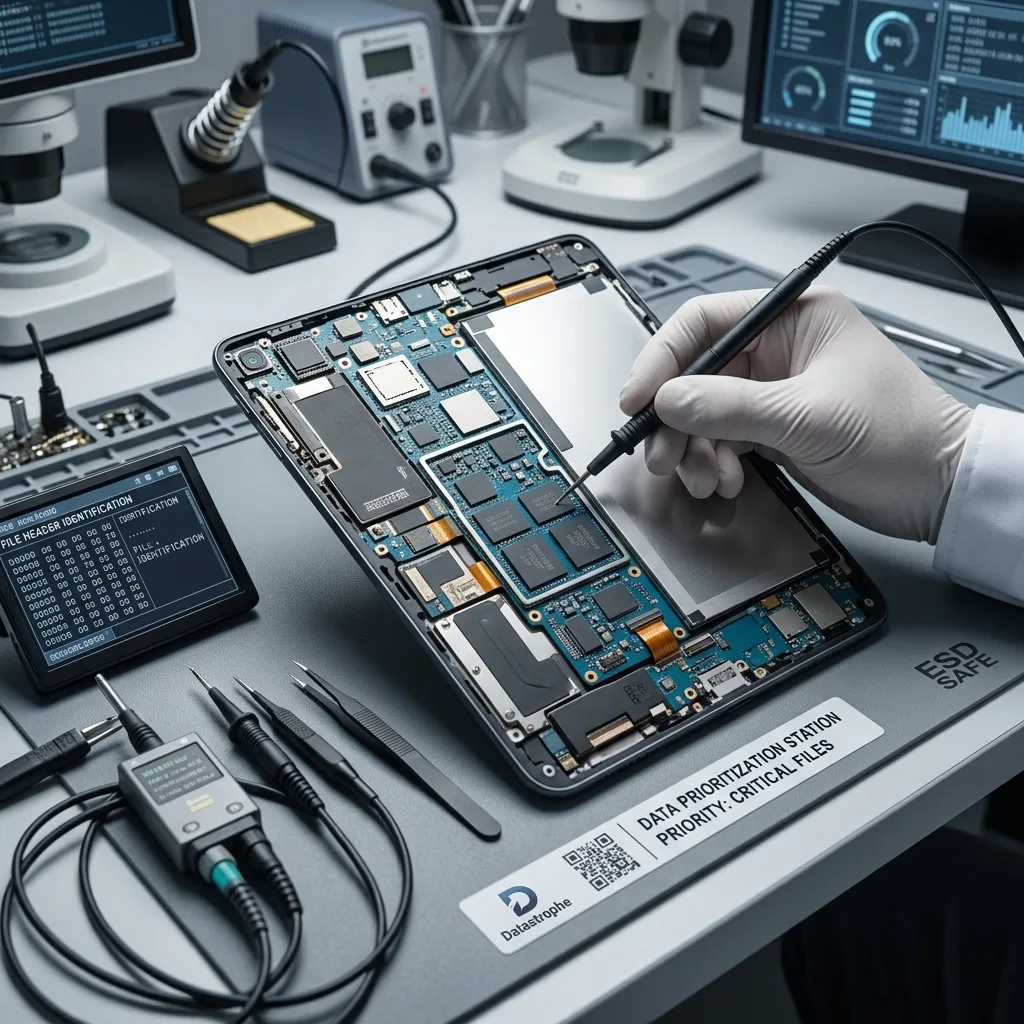
Data extraction
Photos, notes and application data need reusable export formats
An unlocked screen is only the access point; the result must preserve originals, dates and application context in forms the client can use.
Photographs and videos are exported at original resolution where present, with dates and sidecar information retained when possible. Cloud placeholders and cached thumbnails are separated from full local assets. Notes may include attachments, drawings and database relationships that a plain-text export cannot fully represent.
Application containers vary. Some offer authorised in-app export, some store ordinary documents, and others rely on a database plus media directory. The extraction method records which context survives. A specialist application may require its own viewer or account, which is stated rather than converted into generic files without consent.
Where the device is actually a full Windows convertible rather than a tablet operating system, the laptop recovery service may be the better technical route. This service has a tablet-specific scope. Device class and operating system are confirmed at intake so a removable computer or memory card follows the appropriate workflow.
- Export to separate healthy and adequately sized storage
- Preserve original dates, names and application relationships
- Separate full assets from thumbnails and placeholders
- Document any viewer, account or format dependency
Media export
Original files, previews and cloud-only records are labelled separately. Representative videos are checked for duration and playback beyond the opening frame.
Application export
Database, attachment and account dependencies are documented. Where no portable format exists, the delivered structure and the required compatible software are explained.
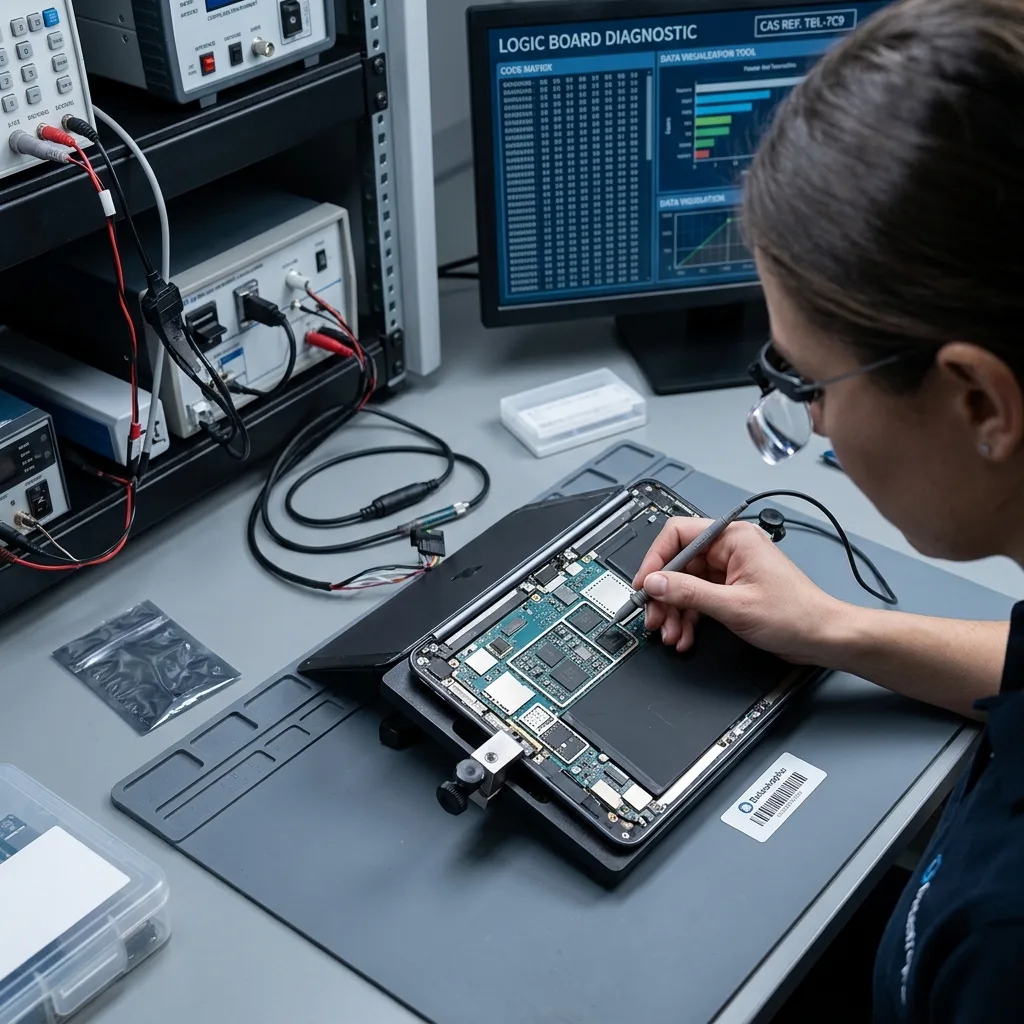
Outcome validation
Original files must be distinguished from gallery previews
A gallery can display cached images after the full asset is missing, encrypted, cloud-only or damaged.
Representative photographs are decoded at their expected resolution and videos are sampled across their duration. File size, metadata and dimensions help identify thumbnails, but content still needs to be opened. Documents and note attachments receive format-appropriate checks rather than a successful filename listing.
The client supplies priority albums, dates, notebooks and applications. Validation can focus on those targets to limit unnecessary access to private content. Recovered data is delivered on healthy media, while account credentials and passcodes are kept outside ordinary inventories.
The report separates verified originals, previews, partial files, cloud references and unavailable encrypted material. It states which samples were checked and what remains untested. A temporary working display or successful device connection is not used as a substitute for proving that the required content has been exported.
Media checks
Samples cover several dates and albums. Videos are tested for continuous playback, while still images are compared with expected dimensions and visual completeness.
Confidential checks
Authorised priorities define the review. Sensitive application data can be validated structurally or with the client's assistance where ordinary preview would expose unrelated content.
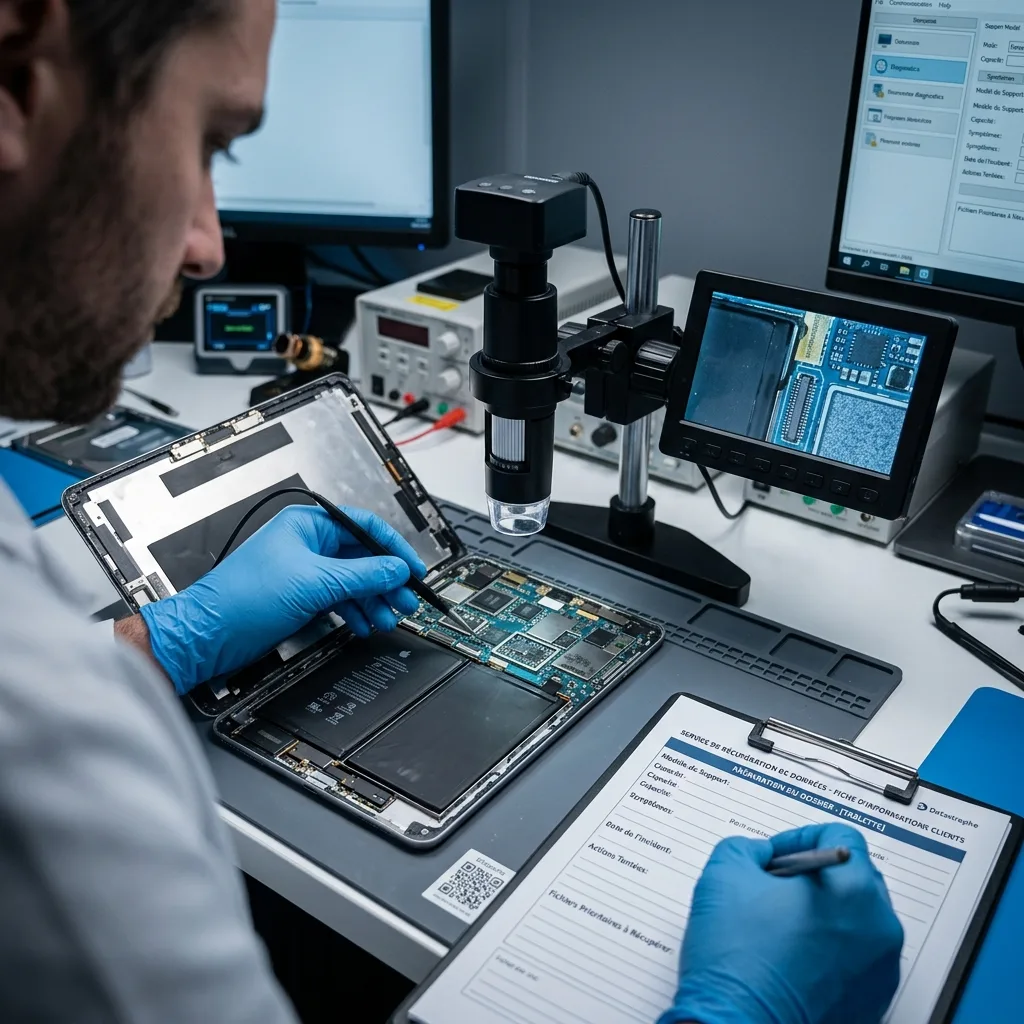
Countrywide service
Prepare the model, passcode context and priority apps for UK intake
Datastrophe supports tablet enquiries across the United Kingdom through arranged intake. The initial review confirms device compatibility, battery precautions and the assigned handling route.
Provide the exact model, storage capacity, operating-system version if known, symptoms, last successful unlock and incident history. State whether the display is broken, the battery is swollen, liquid was involved, a reset was attempted or a remote-management action is pending. Photograph existing damage without charging an unsafe device.
Keep the complete tablet and any removable memory card. Do not ship a swollen or visibly damaged battery until transport instructions are confirmed. Protect the device in a rigid cushioned parcel, isolate accessories and avoid pressure on a cracked screen. Passcodes or account credentials are not placed loose inside the parcel.
Use Request a quote to submit the device and data priorities. The data recovery process explains assessment and validation, while pricing information describes why display access, board work and encryption affect scope. The handling destination, battery instructions and required device set are agreed for each case.
- Stop charging after liquid, heat or battery damage
- Prevent factory reset and remote erase actions
- Keep the complete tablet and authorised access context
- Confirm battery, packaging and dispatch instructions
Access information
Preserve the known passcode, authorised account and management contact without sending secrets before a secure route is agreed. Record any lockout message exactly.
Priority information
List missing albums, notes, documents and application records, their dates and whether confirmed cloud or backup copies exist. This defines the value of local recovery.
FAQ
Frequently asked questions
Can data be recovered from a tablet with a broken screen?
Possibly, if the display or touch path is the failed layer and the board, storage and security state remain functional. Do not enter the passcode blindly or keep charging after an impact. A controlled display pathway may create authorised access for export. The result is copied to separate storage; a temporary screen repair does not certify the damaged tablet for everyday use.
Should I factory-reset a tablet stuck in a boot loop?
Not when locally stored data is the priority. A factory reset replaces keys and creates a new user environment, making encrypted remnants unusable. A backup restore can also overwrite the present state. Preserve the tablet, verify external backups separately and obtain a diagnostic assessment of power, board, storage, operating system and authorised access before any reset is considered.
Can raw flash be read without the tablet passcode?
Modern tablets normally encrypt flash with keys linked to the processor, security hardware and passcode. A physical read can therefore produce encrypted pages rather than files. Recovery does not bypass lawful access controls or manufacture missing keys. Board-level stabilisation may restore the original authorised path, but feasibility depends on the surviving hardware, operating-system state and valid credentials.
How do I know whether tablet photos are only cloud copies?
Check the authorised cloud account and another synchronised device, then compare dates, resolution and availability without issuing a remote erase. On the tablet, thumbnails or placeholders may remain without full originals, while recent offline captures may never have uploaded. Recovery labels confirmed originals, previews and cloud references separately and validates representative media at expected dimensions and duration.
Does a full Windows convertible follow the tablet workflow?
Not automatically. A detachable or convertible computer running full Windows may be better assessed through the laptop workflow because its storage, BitLocker and operating-system repair risks differ. Device class is confirmed from the exact model and operating system at intake. A removable memory card is preserved separately and can follow its own medium-specific assessment.
Media
Other expertise
- Hard Drive Data Recovery Hard drive data recovery for clicking, impact damage, unstable sectors and corrupted file systems, based on a controlled technical evaluation.
- External Hard Drive Data Recovery External hard drive data recovery for USB bridge faults, power damage, impact, enclosure encryption and volumes that no longer mount.
- SSD and NVMe Data Recovery SSD and NVMe data recovery for controller, NAND, firmware and FTL faults, TRIM, damaged file systems and encrypted volumes.
- USB Flash Drive Data Recovery USB flash drive data recovery for broken connectors, damaged circuit boards, controller failure, unstable NAND and deleted files.
- Memory Card Data Recovery Memory card data recovery for formatted SD, microSD and CF media, NAND faults, missing DCIM folders and damaged RAW photographs or video.
- Laptop Data Recovery Laptop data recovery after drops, liquid damage, motherboard failure, faulty SSDs or hard disks and encrypted user profiles.
- Apple Mac Data Recovery Apple Mac data recovery for APFS corruption, FileVault, T2 or Apple silicon systems, failed SSDs, Fusion Drive and macOS start faults.
- VMDK and VHDX Virtual Disk Data Recovery VMDK, VHDX and virtual disk data recovery for broken snapshot chains, missing parent files, thin provisioning and damaged datastores.
- RAID, NAS and Storage Array Data Recovery RAID and NAS data recovery after multiple disk failures, an interrupted rebuild, lost member order, parity errors or an inaccessible pool.
- Business Server Data Recovery Server data recovery after storage, file-system, database or operating-system damage, with business-critical services prioritised.
- CCTV Data Recovery from NVR, DVR and XVR Recorders CCTV data recovery from NVR, DVR and XVR recorders with empty calendars, failed disks, corrupt indexes, proprietary codecs or overwritten footage.
- Data Recovery Laboratory Work in an ISO 5 Class 100 Cleanroom ISO 5 Class 100 cleanroom procedures for mechanically damaged hard drives, failed head assemblies, platter inspection and controlled sector acquisition.
 Hard Drive Data Recovery
  SSD and NVMe Data Recovery
  USB Flash Drive Data Recovery
  Memory Card Data Recovery
  Laptop Data Recovery
  VMDK and VHDX Virtual Disk Data Recovery
  RAID, NAS and Storage Array Data Recovery
  Business Server Data Recovery
  CCTV Data Recovery from NVR, DVR and XVR Recorders
  Data Recovery Laboratory Work in an ISO 5 Class 100 Cleanroom
 Diagnostic assessment
Unsure about a storage device or fault?
Datastrophe qualifies the risk before any recovery attempt and points you towards the safest next step.